16. Peacock 3D
Peacock is a browser based 3D Data Visualizer thats aids in understanding data from Physics based simulation in addition to Geometry data. With built-in exporters in d3VIEW, Peacock works seamlessly to visualize data from CAD/CAE/ and has a tighter integration with LS-DYNA result files from D3PLOT/BINOUT and extracted data. Peacock is the third generation version and provides a intuitive interface that is simple and easy to use.
Please watch the tutorial video for Peacock features below.
Let us see some features in peacock in detail.
16.1. Getting Familiar with Peacock Interface
3D Peacock model options and canvas
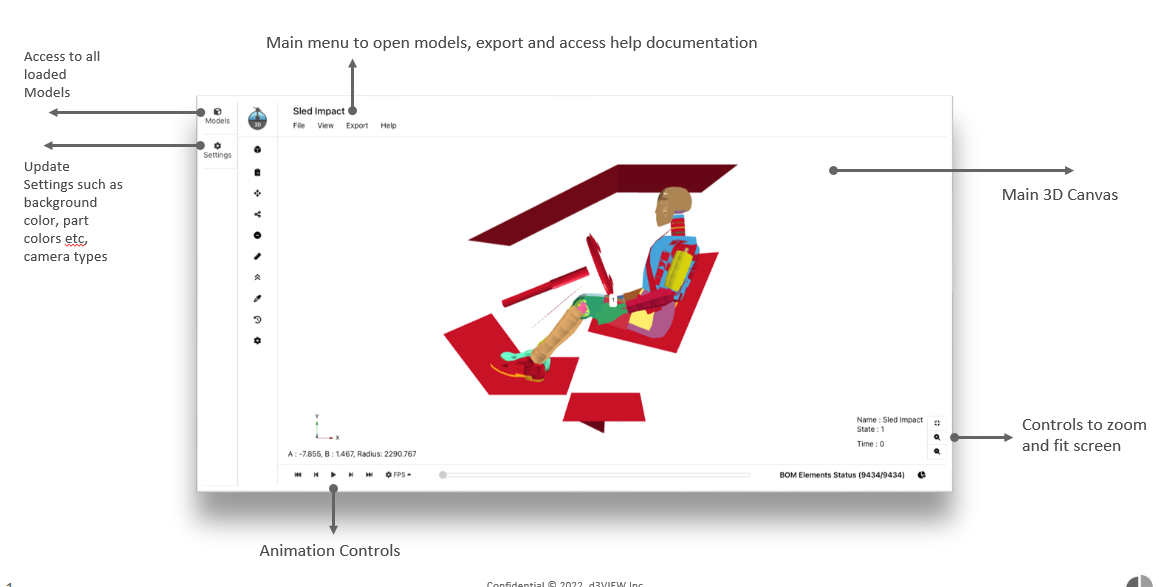
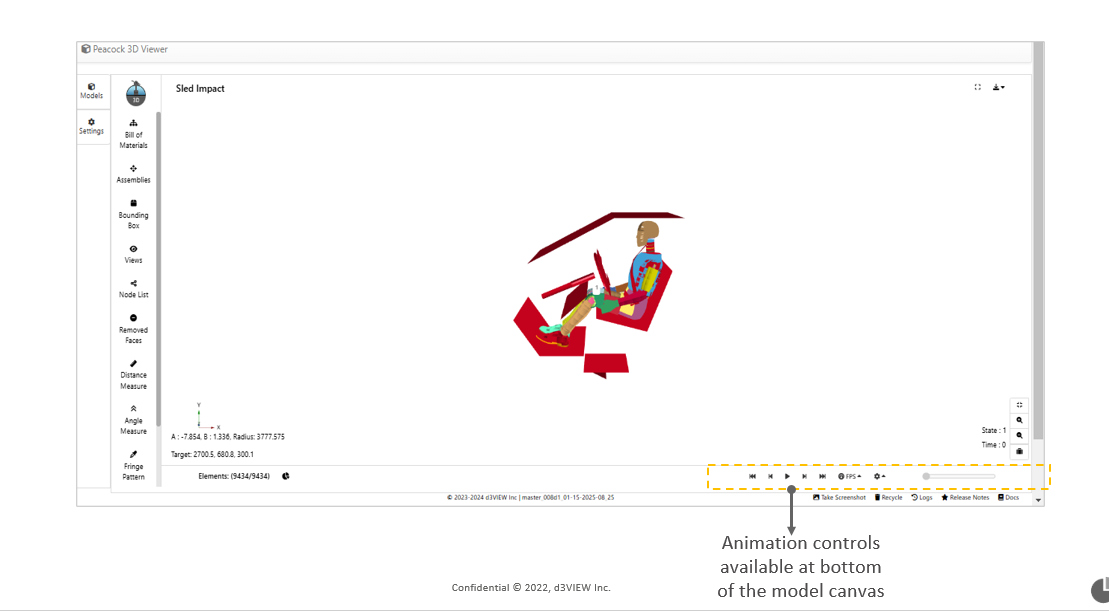
Below Image shows the Peacock model with features available on the canvas.
- Models
- Settings
- main menu options
- Animation controls
- Control to zoom and Fut screen.
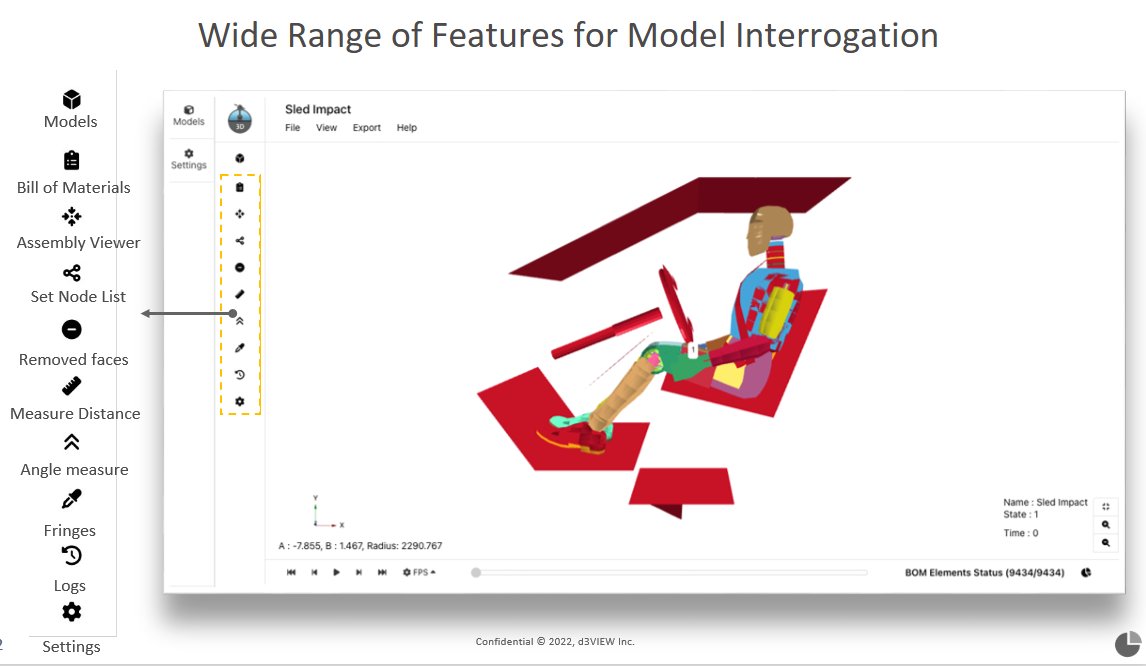
Addtional settings
Settings like BOM viewer, fringes, views , lights and assembly are available for the peacock.
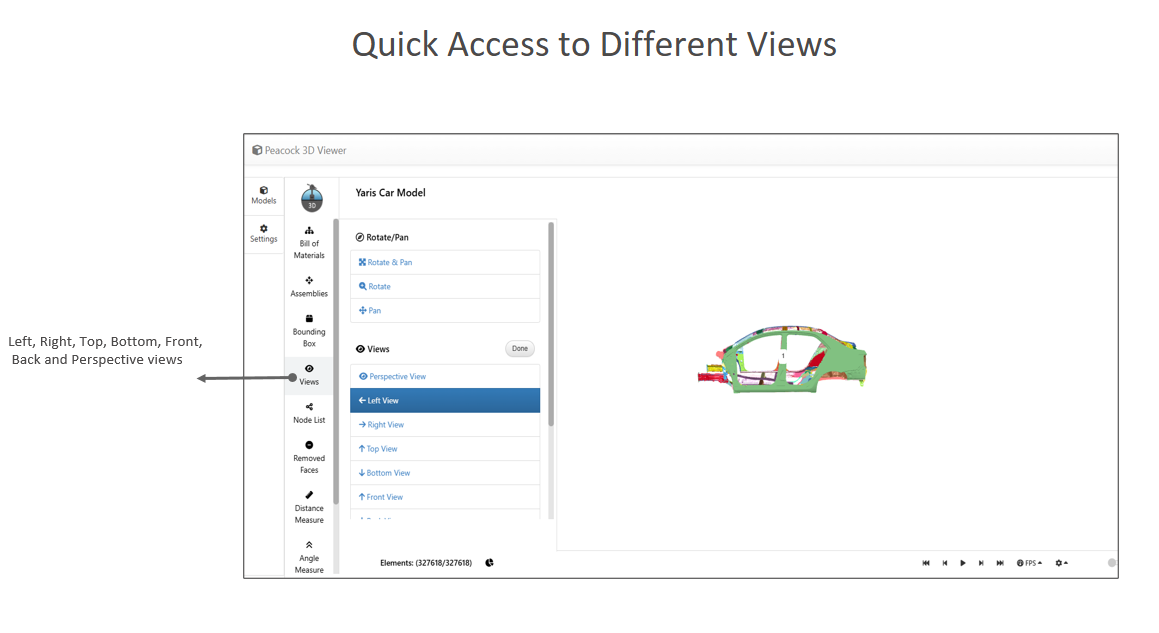
Views of the model
Peacock model can be viewed in differnt side and views such as Left, Right, Front, Back, Top and Bottom.
This option is available under views in header bar and also in the right click context menu options.
Views examples
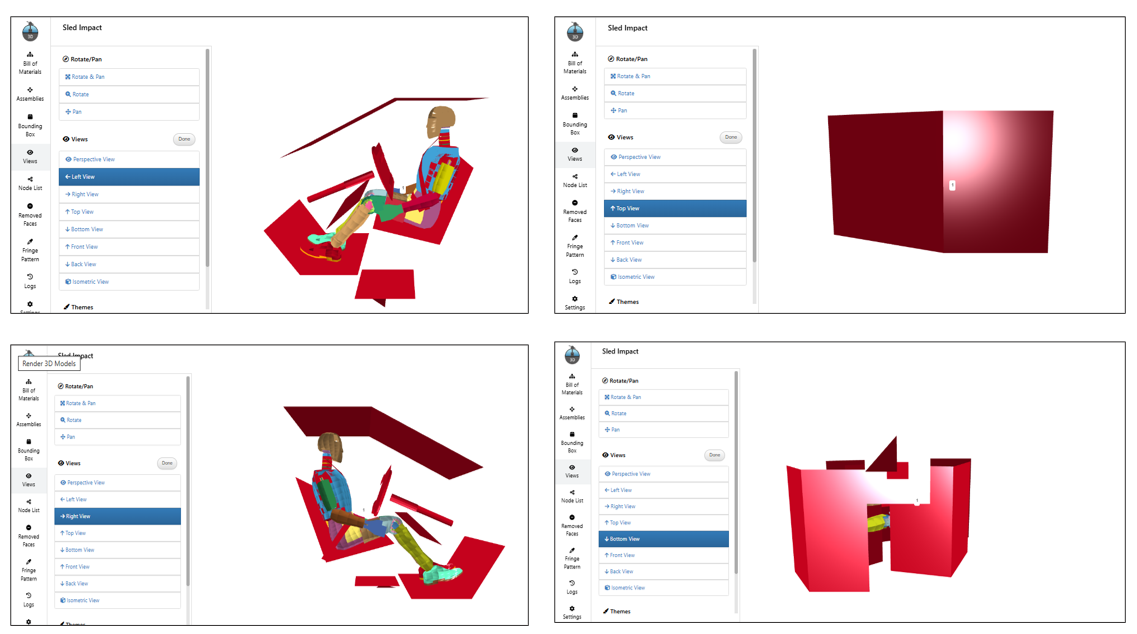
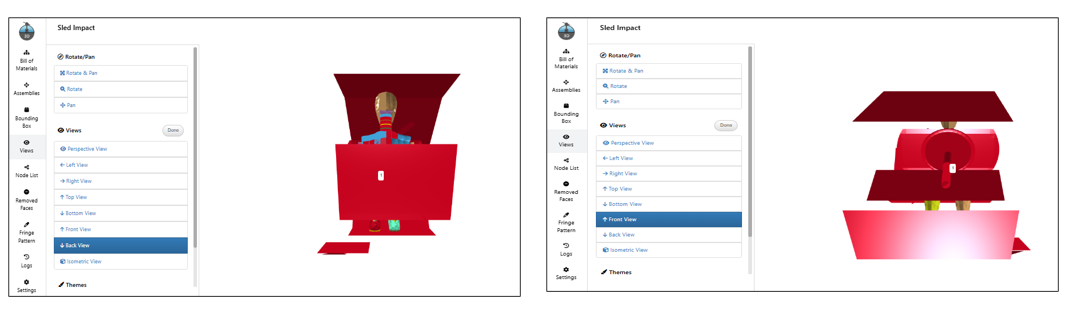
Below video shows different views of the model.
Animation controls of the model
Peacock model support Animation.
The Animation controls are available for the Peacock model with options to play, pause, next and previous.
The Animation of the model renders morphtargets and play the model.
Animation examples
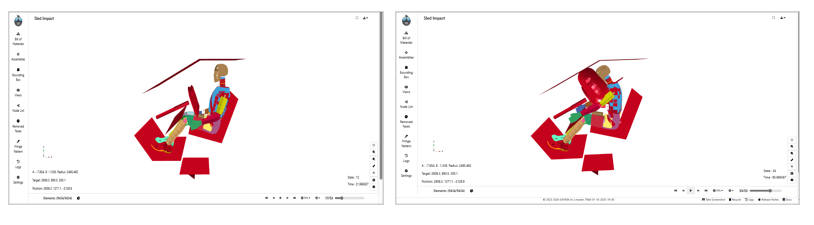
Below video shows an example for animation.
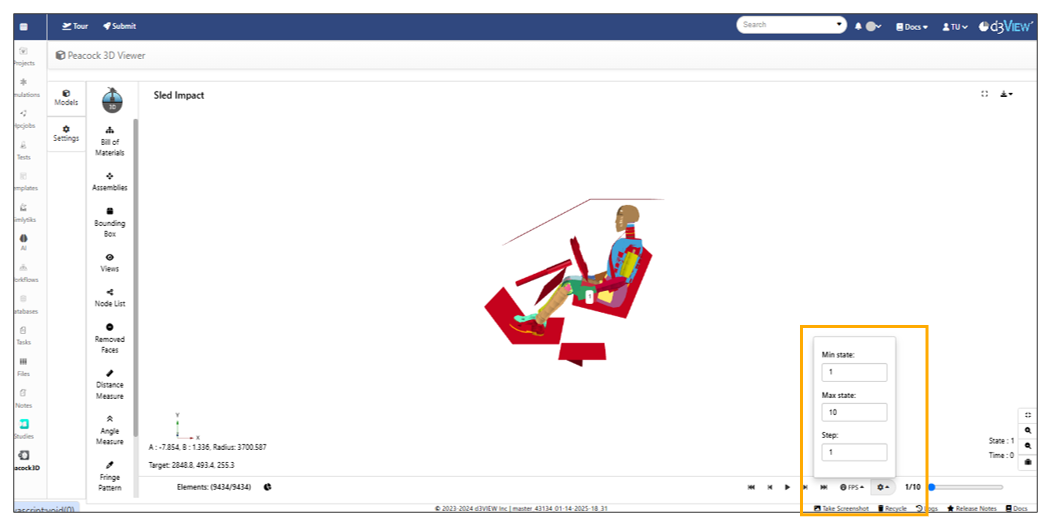
Min/max/step support for animation slider in the settings dropdown beside FPS is available for Peacock model.
Zoom/Fit options
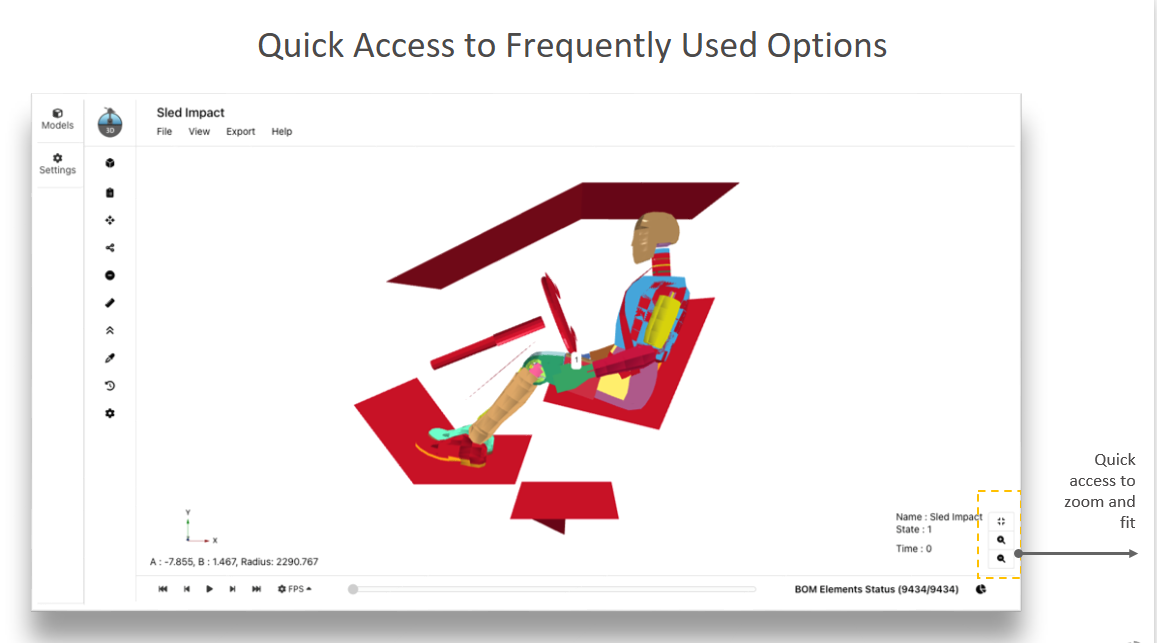
Quick Access to Frequently Used Options
The below images shows quick access for Zoom and Autofit options.
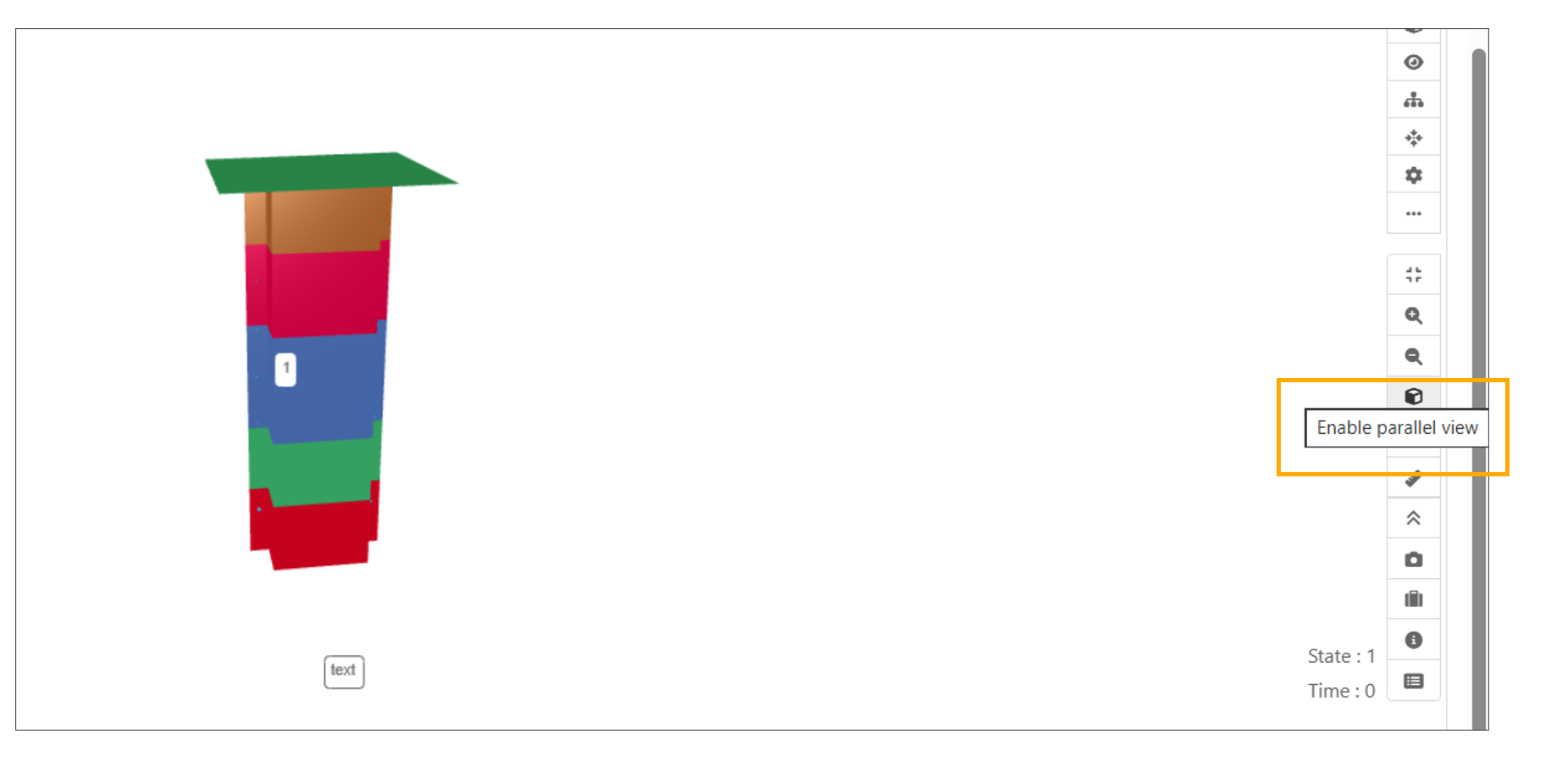
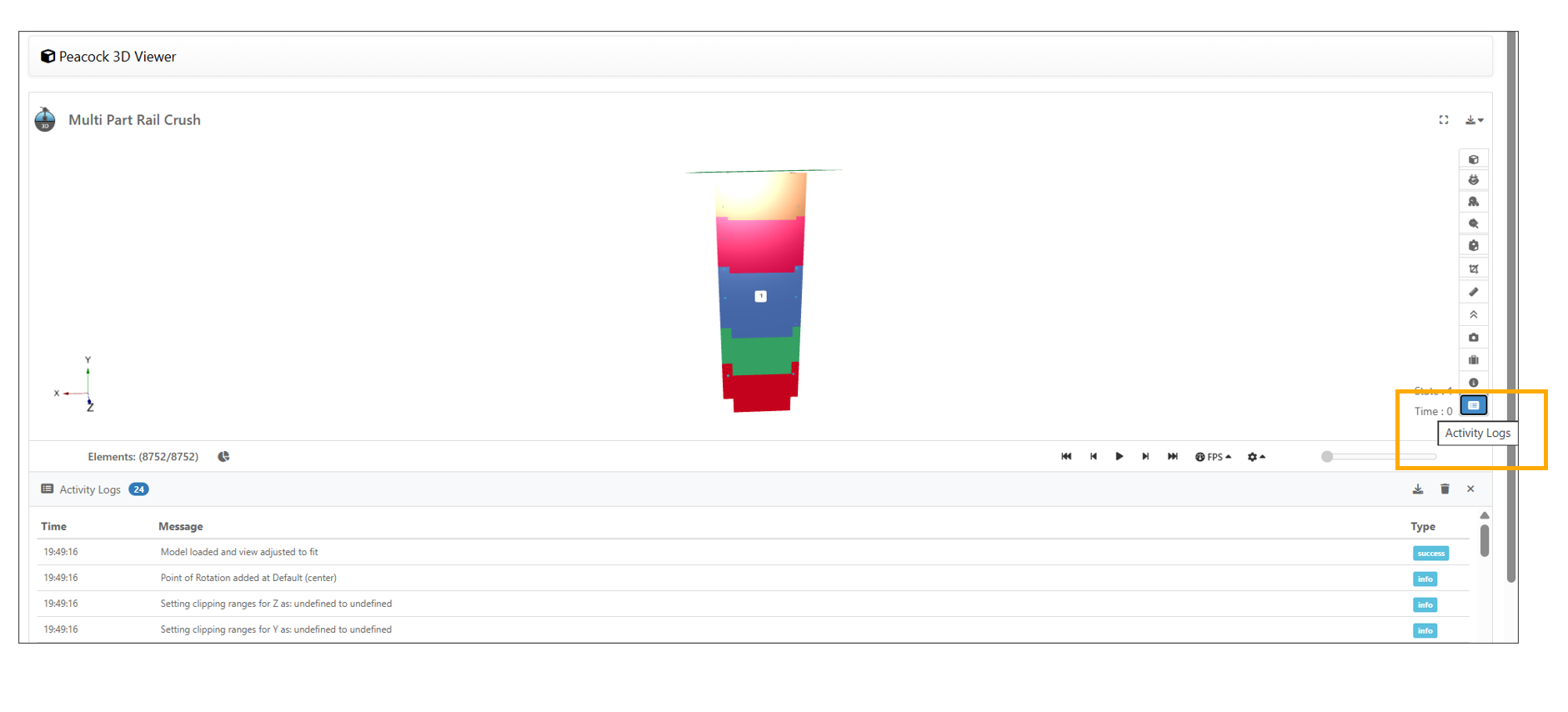
Tooltips have been added to all buttons in the Peacock interface.
Import options
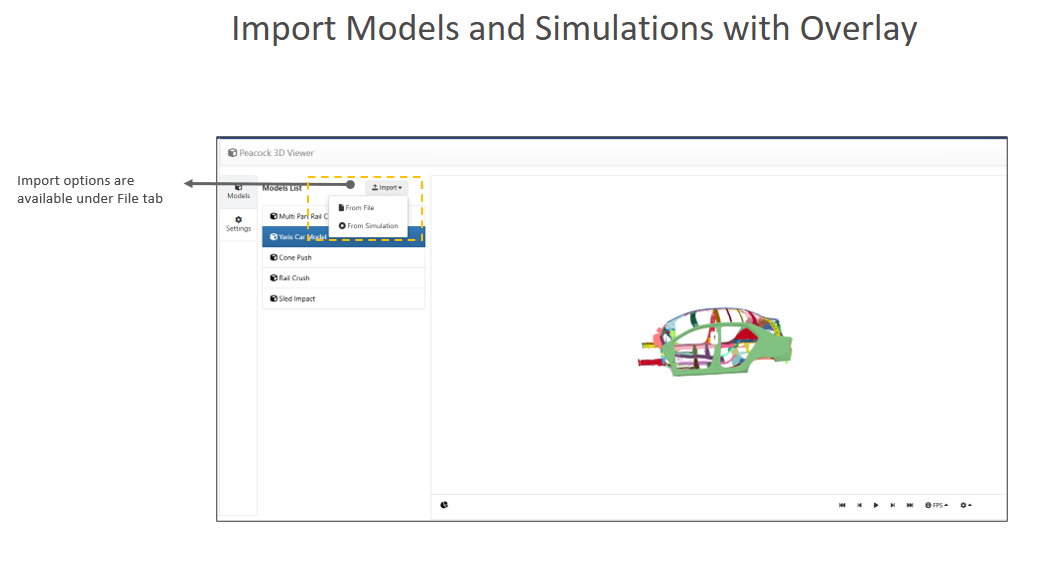
Peacock can be imported to the exisiting model and can be viewed side by side for comparision.
Below image shows options to Import Models and Simulations with Overlay.
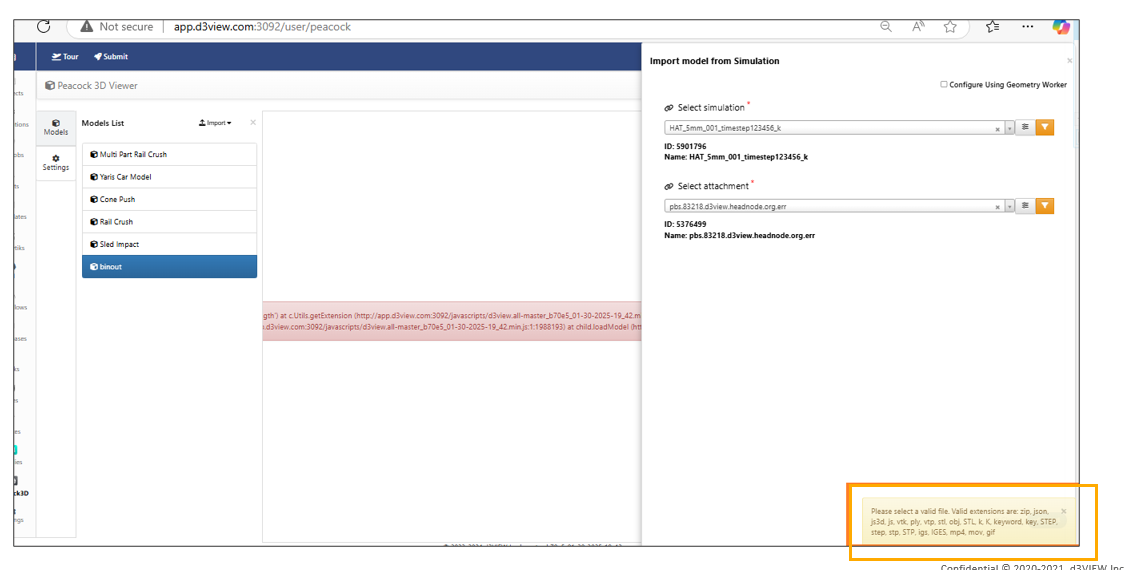
Import from simulation in Peacock shows alert message when invalid extension files are selected for import
Viewing Multiple models 
We can view multiple models together in canvas by enabling multiple option in settings.
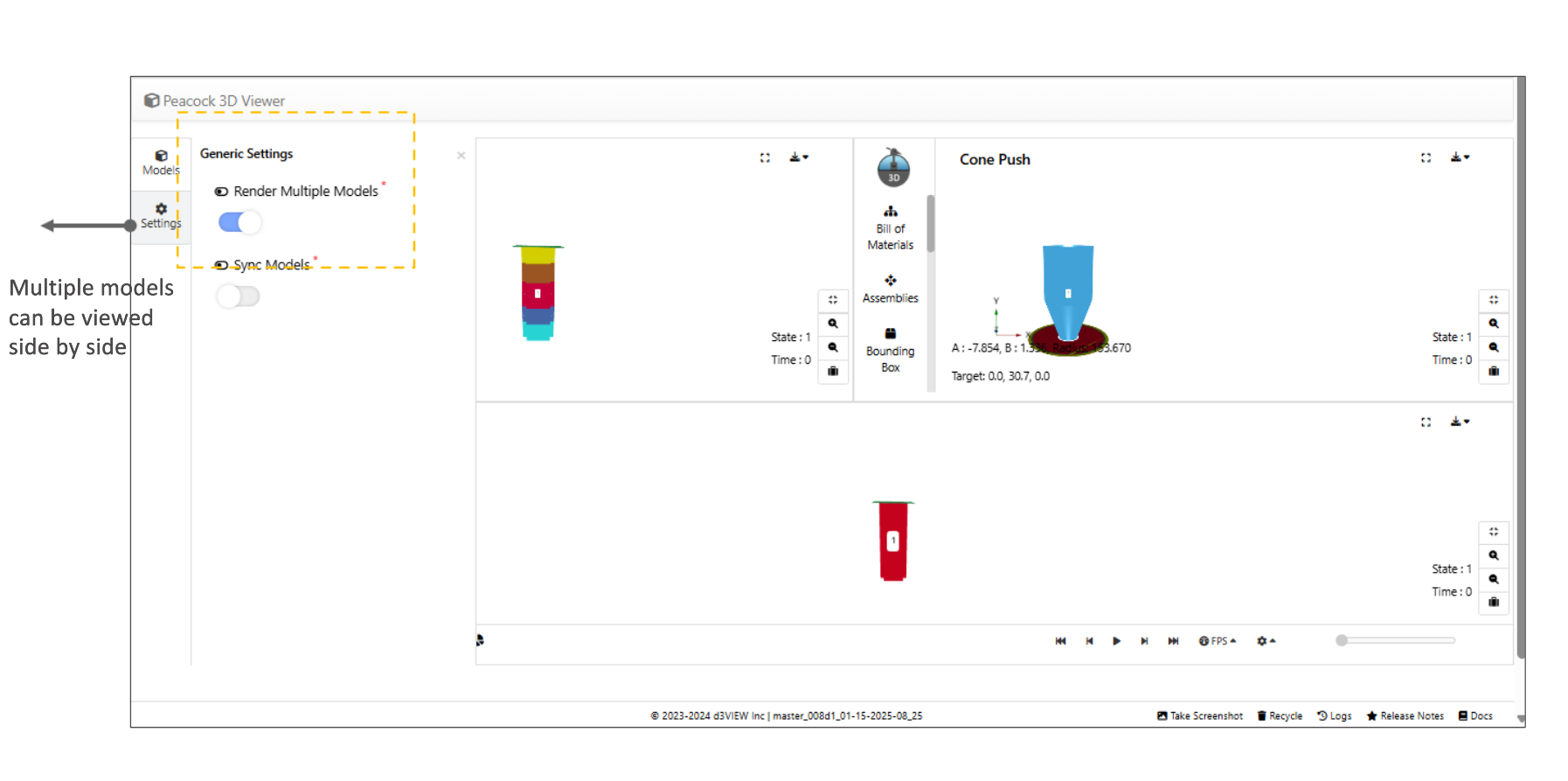
Below video shows multiple models in canvas.
Bill of Materials 
The Bill of Materials or BOM are available for each 3d model. The parts can be enabled disabled in this feature and also the color of the part can be changed as per users interest.
BOM Table Added to Peacock Models
Overview
Peacock models now include a Bill of Materials (BOM) table displayed at the bottom of the page.
The BOM provides a comprehensive list of model parts with searchable, filterable, and sortable columns, making it easier to locate and manage individual components. Users can also enable or disable parts directly from the BOM table to control their visibility in the model.
Key Features
- Added a Bill of Materials (BOM) table to Peacock models
- Displays the BOM at the bottom of the model page
- Supports searching, filtering, and sorting across BOM columns
- Allows users to quickly locate specific parts
- Enables individual parts to be enabled or disabled directly from the BOM
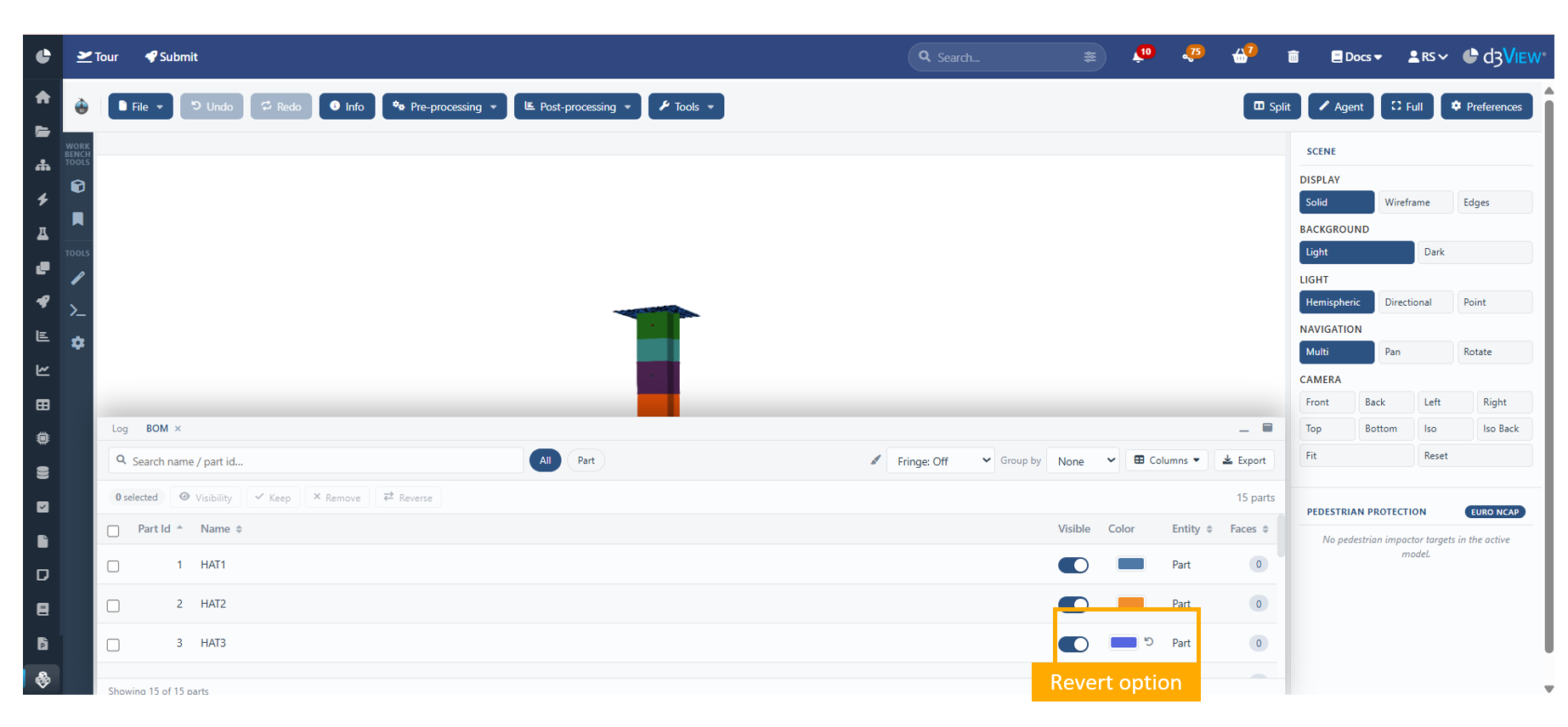
Revert Part Colors from the Peacock BOM
Overview
Peacock now allows users to revert part colors that have been edited from the Bill of Materials (BOM) table back to their original values.
A new Revert option is available next to the Color column, enabling users to quickly restore the original part colors without manually reassigning them.
Key Features
- Added a Revert option next to the Color column in the BOM
- Restores edited part colors to their original values
- Supports reverting individual part color changes
- Simplifies color management directly from the BOM
- Eliminates the need to manually reset part colors
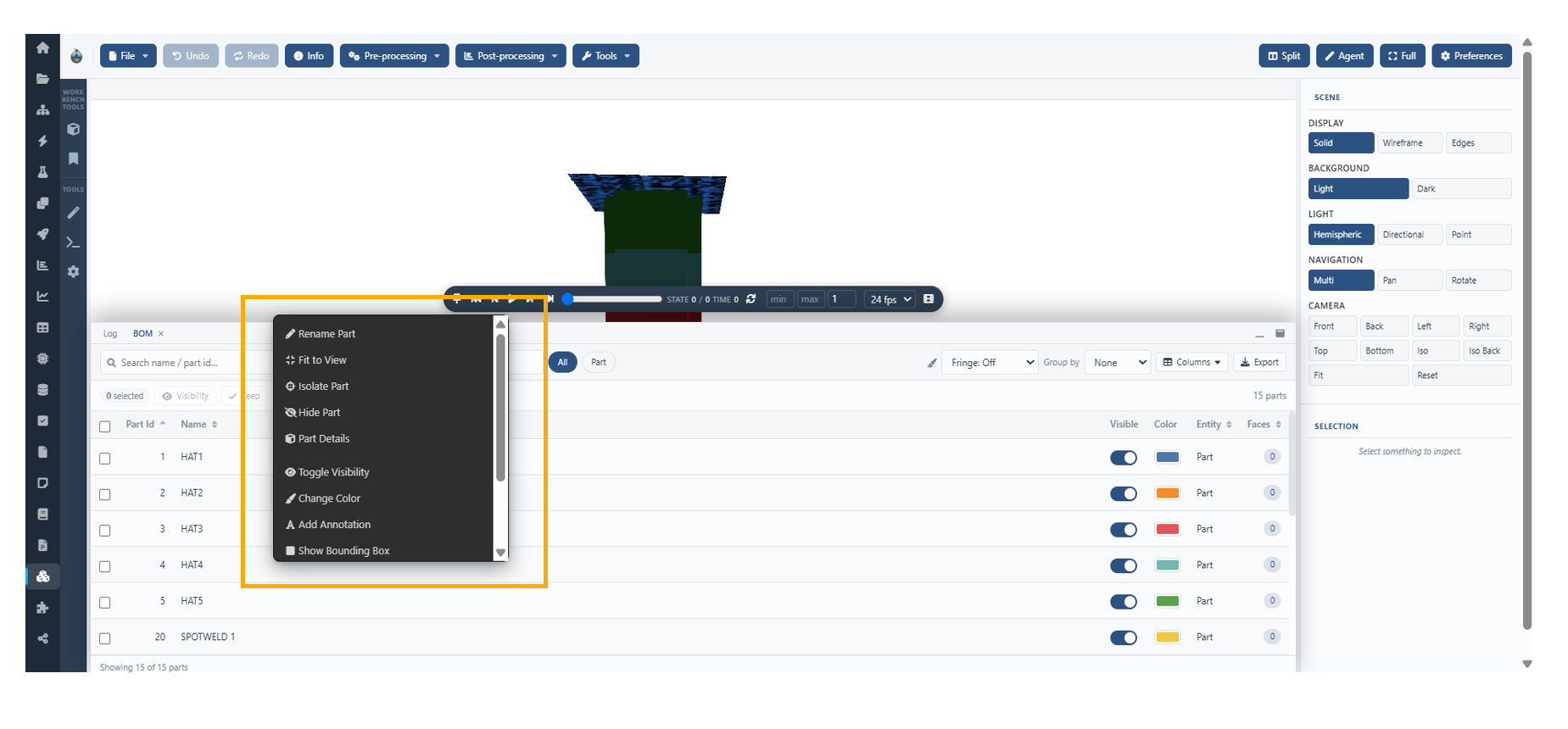
Context Menu Added to Peacock BOM Table
Overview
The Bill of Materials (BOM) table in Peacock now supports a right-click context menu, providing quick access to part management actions and other relevant operations directly from the BOM view.
This enhancement streamlines part management by allowing users to perform common actions without leaving the BOM table.
Key Features
- Added a right-click context menu to the Peacock BOM table
- Provides quick access to part management actions
- Supports context-specific operations directly from the BOM
- Reduces navigation by making frequently used actions readily accessible
- Improves efficiency when working with model parts.
Peacock: Explore Output Merge in BOM
Overview
In Peacock, the Explore option within the BOM now extracts the output and merges the resulting columns directly into the current BOM view.
Feature Description
The updated Explore workflow enhances BOM analysis by automatically integrating extracted output data into the active BOM table. When users trigger the Explore action, the generated output columns are merged into the existing BOM view for immediate visibility and comparison.
Fringes
Fringes support available for Peacock model. We can modify the fringe by selecting and adding min/max values.
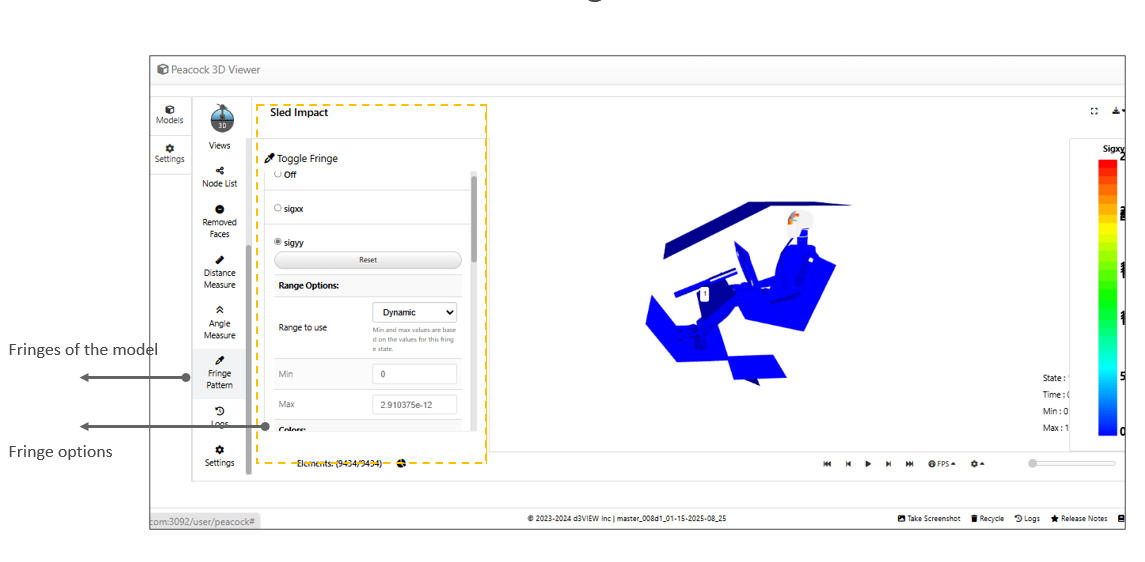
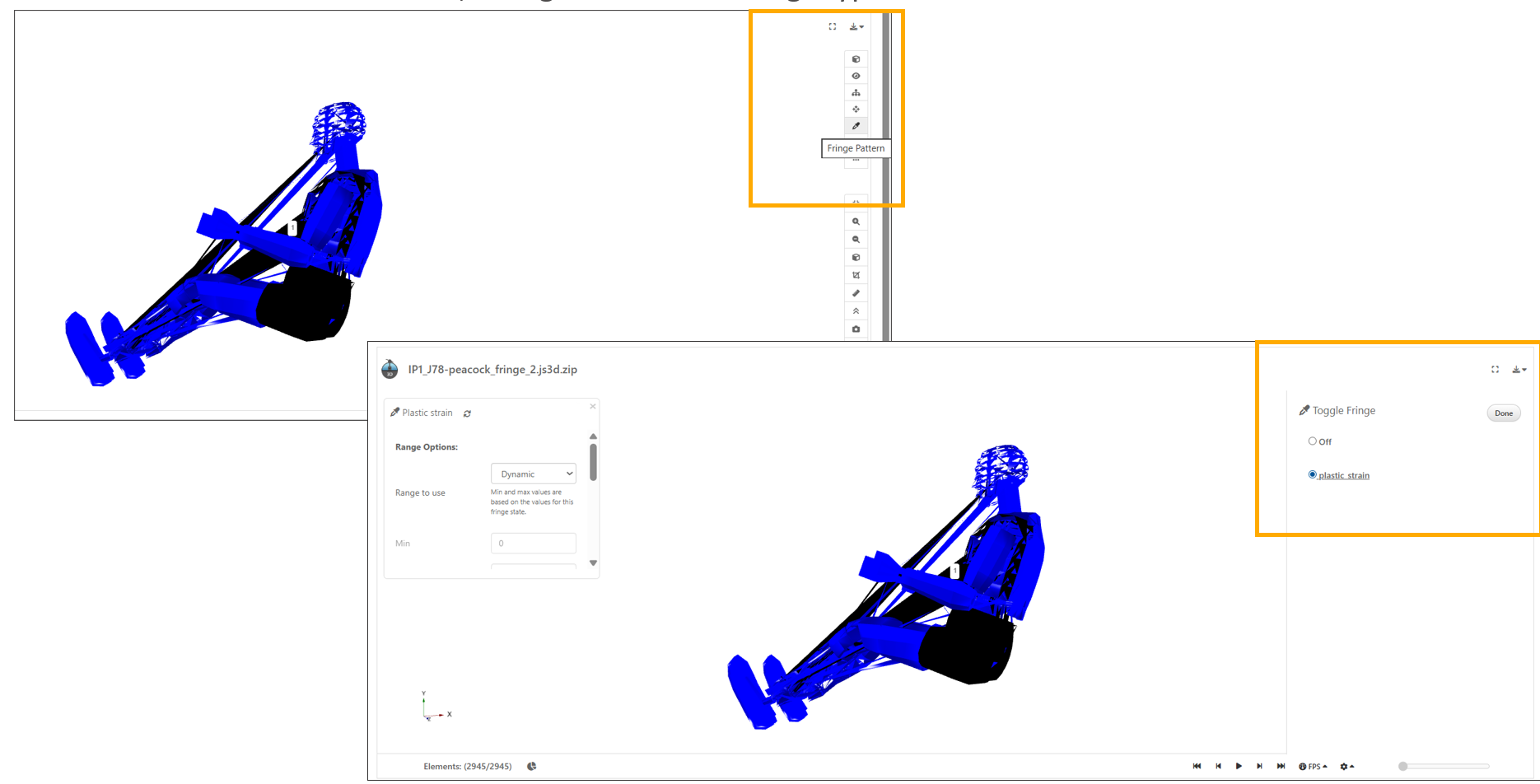
Peacock models containing fringe data (e.g., from a ZIP with fringe data) now display a Fringes submenu under the Tools menu, listing the available fringe types.
Fringe options container in Peacock has a new OPACITY option right at the end to allow changing opacity of all parts within the range.
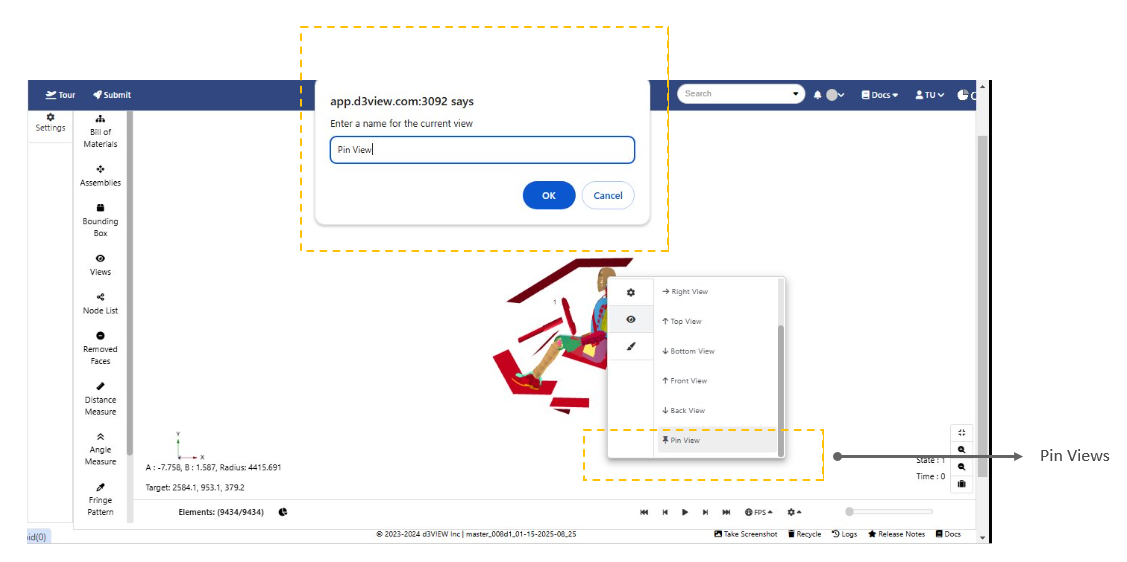
Pin views
We can pin different views and view them later in the saved views. We can also switch between pinned view in the canvas.
16.2. Pre Processing
Morph Tool Added to Peacock Pre-processing
Overview
Peacock Pre-processing now includes a new Morph tool that enables users to modify model geometry using a variety of morphing operations.
The tool provides an interactive environment for reshaping finite element models through operations such as Box Cages, Multiple Models, Connections, Interference, and Sub Regions, making it easier to perform localized or global geometry modifications before simulation.
Key Features
- Added a new Morph tool to Peacock Pre-processing
- Supports Box Cages for cage-based geometry deformation
- Enables morphing across Multiple Models
- Includes Connections-based morphing operations
- Supports Interference detection and geometry adjustment
- Allows localized morphing using Sub Regions
- Provides an interactive workflow for modifying model geometry
Part Transformation Tools Added to Peacock Pre-processing
Overview
Peacock Pre-processing now supports Part Transformations, enabling users to modify the position, orientation, and size of parts directly within the model.
The new transformation tools allow users to translate, rotate, scale, and mirror parts interactively, providing greater flexibility when preparing and editing models prior to simulation.
Key Features
- Added Part Transformation tools to Peacock Pre-processing
- Supports Translate operations to reposition parts
- Supports Rotate operations to change part orientation
- Supports Scale operations to resize parts
- Supports Mirror operations to create mirrored geometry
- Enables interactive editing of model components
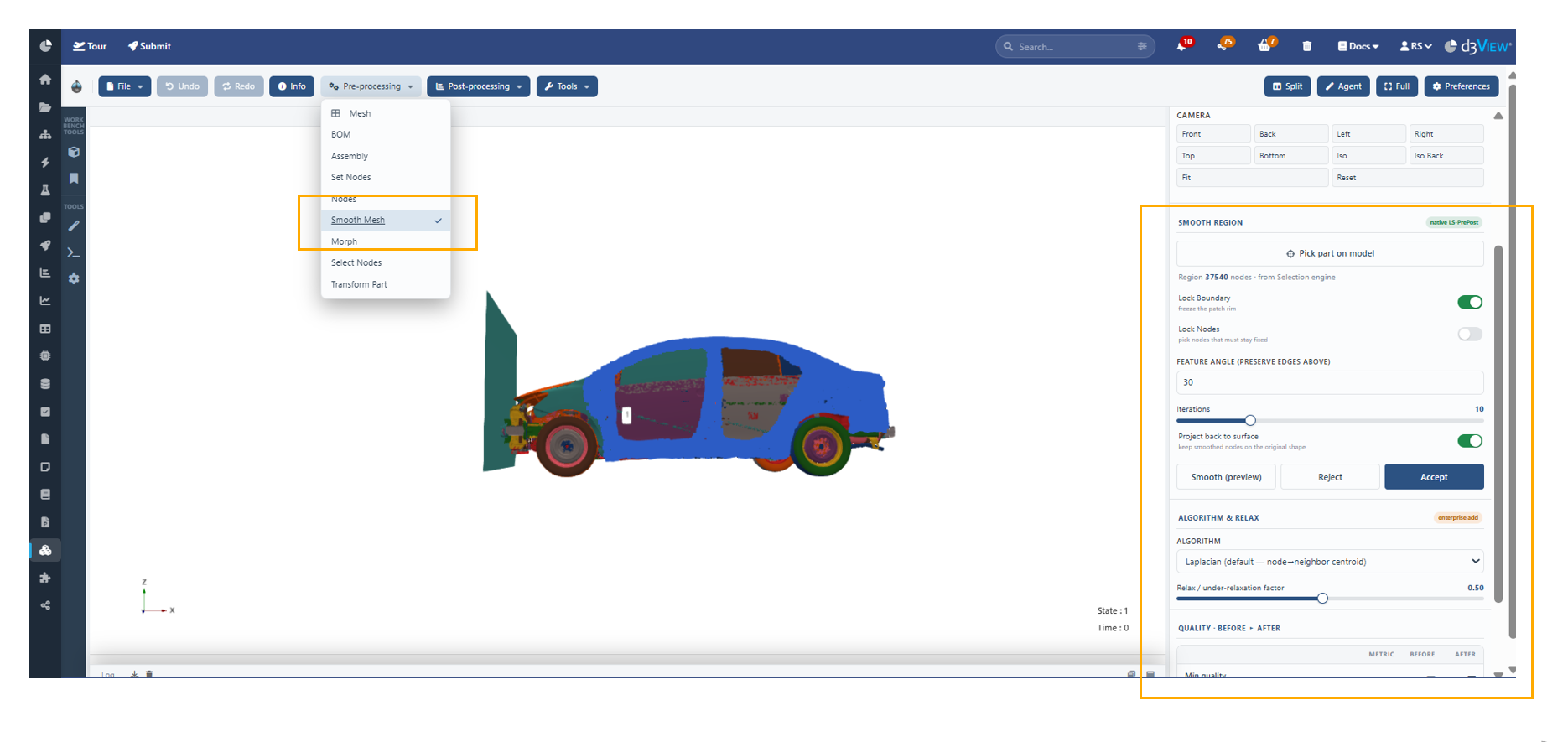
Smooth Mesh Support Added to Peacock Pre-processing
Overview
Peacock Pre-processing now supports Smooth Mesh, enabling users to improve mesh quality by smoothing selected mesh regions.
The Smooth Mesh tool helps refine mesh geometry by reducing irregularities and improving element quality while preserving the overall shape of the model, making it easier to prepare meshes for simulation.
Key Features
- Added Smooth Mesh support to Peacock Pre-processing
- Smooths selected mesh regions interactively
- Improves overall mesh quality and element distribution
- Preserves the overall geometry during smoothing
- Enhances mesh preparation prior to simulation
Node Selection Added to Peacock Pre-processing
Overview
Peacock Pre-processing now supports Node Selection, enabling users to quickly select and work with individual or multiple nodes within a model.
This enhancement provides an efficient way to inspect, edit, and manipulate node-based geometry, simplifying common preprocessing tasks and improving overall workflow productivity.
Key Features
- Added Node Selection support to Peacock Pre-processing
- Select individual or multiple nodes interactively
- Supports efficient node-based editing and inspection
- Enables node selection for downstream preprocessing operations
- Improves precision when modifying finite element models
Geometry-Based ML Model Visualization and Direct PedPro Prediction Added to Peacock
Overview
Peacock now supports Geometry-Based ML Model Visualization and Direct PedPro Prediction, allowing users to visualize geometry-based machine learning models and perform pedestrian protection predictions directly within the 3D viewer.
This enhancement brings machine learning analysis and PedPro prediction capabilities into a unified workflow, enabling users to interact with simulation geometry, visualize ML model outputs, and generate predictions without leaving the Peacock environment.
Key Features
- Added Geometry-Based ML Model Visualization support in Peacock
- Added Direct PedPro Prediction within the 3D viewer
- Enables visualization of geometry-based machine learning models
- Allows PedPro predictions directly on opened models
- Integrates model visualization and prediction into a single workflow
Geometry-Based ML Model Visualization and Direct PedPro Prediction from Uploaded Models
Overview
Peacock now supports Geometry-Based Machine Learning Model Visualization and Direct PedPro Prediction from an uploaded model file.
Users can upload a supported model directly into the 3D Viewer, visualize geometry-based machine learning models on the model geometry, and perform PedPro predictions without leaving Peacock. This enhancement provides a seamless workflow for machine learning analysis and pedestrian protection evaluation within a single interactive environment.
Key Features
- Supports uploading model files directly into the Peacock 3D Viewer
- Visualizes geometry-based machine learning models on uploaded geometry
- Enables Direct PedPro Prediction from uploaded models
- Displays prediction results interactively within the 3D Viewer
- Eliminates the need for external preprocessing or visualization tools
16.3. Pedestrian Protection
Pedestrian Protection Overlay Enhanced with Distinct Impactor Markers
Overview
Peacock now supports Pedestrian Protection under the Pre Processing options. The Pedestrian Protection overlay has been enhanced to display distinct 3D marker shapes for each pedestrian impactor family, making it easier to identify and differentiate impact locations.
Different marker shapes are used for Headform, Upper Legform, and Lower Legform impactors, improving visualization and model review during pedestrian protection analysis.
Key Features
- Added Pedestrian Protection support under the Pre Processing options
- Displays distinct 3D marker shapes for each pedestrian impactor family
- Differentiates Headform, Upper Legform, and Lower Legform impactors
- Improves visualization of pedestrian impact locations
- Enhances model inspection during pedestrian protection setup
Behavior
- Users can enable the Pedestrian Protection overlay from the Pre Processing options.
- The overlay displays impact locations using unique 3D marker shapes based on the impactor family.
- Each impactor type is visually distinguishable, allowing users to quickly identify Headform, Upper Legform, and Lower Legform impact points.
- The markers are displayed for visualization purposes only and do not modify the underlying model.
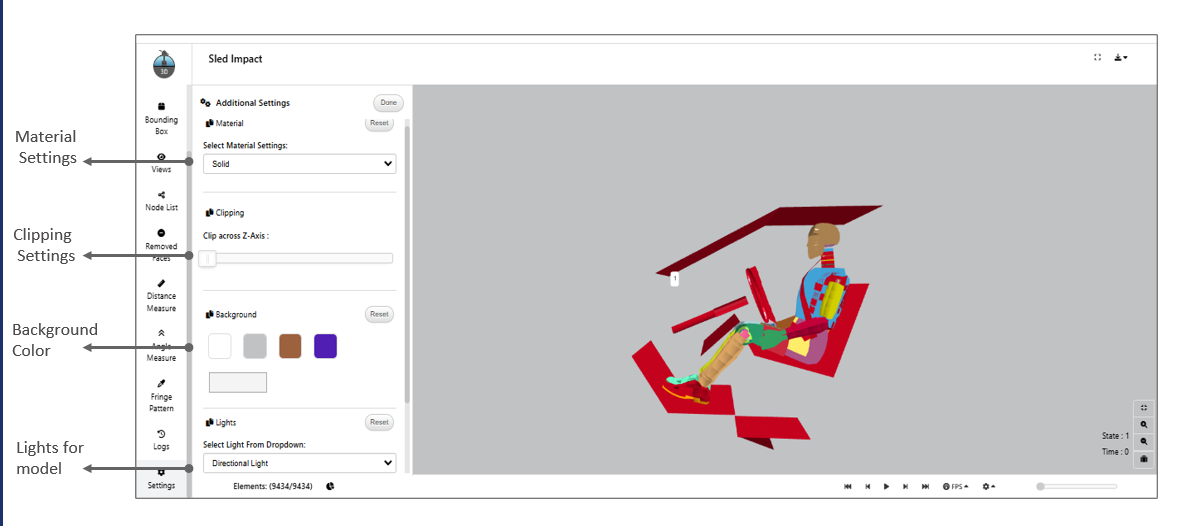
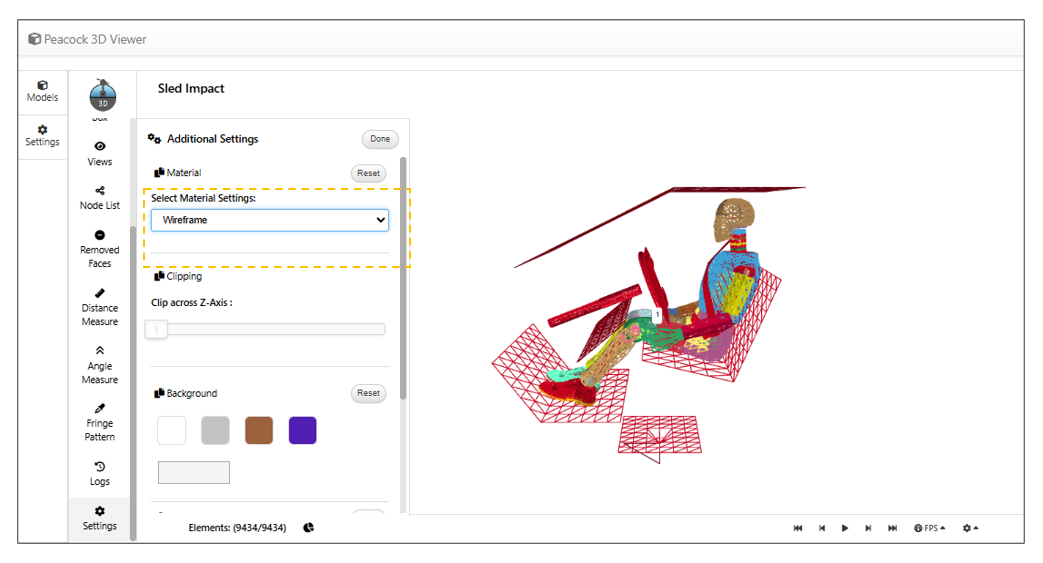
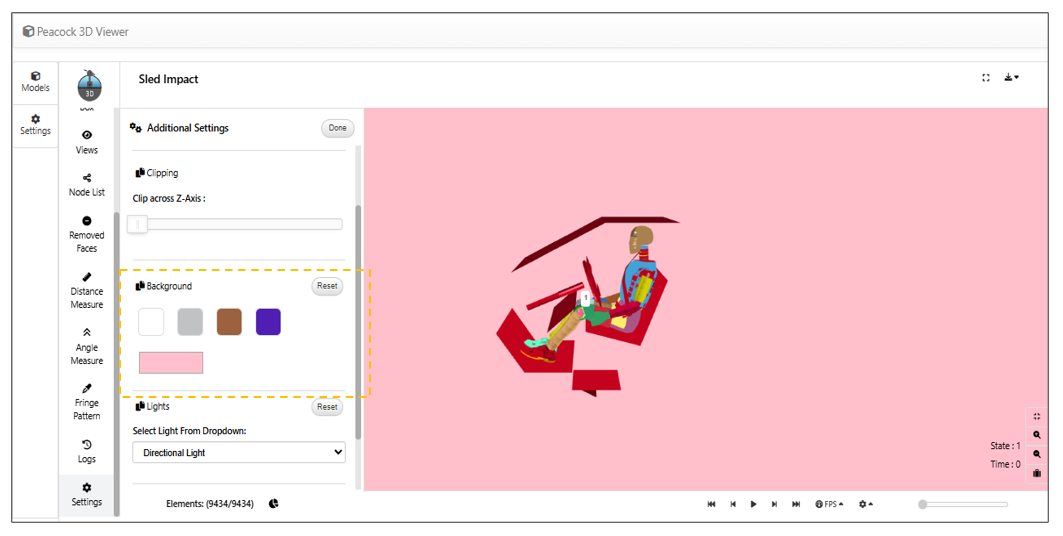
16.4. Addtional features
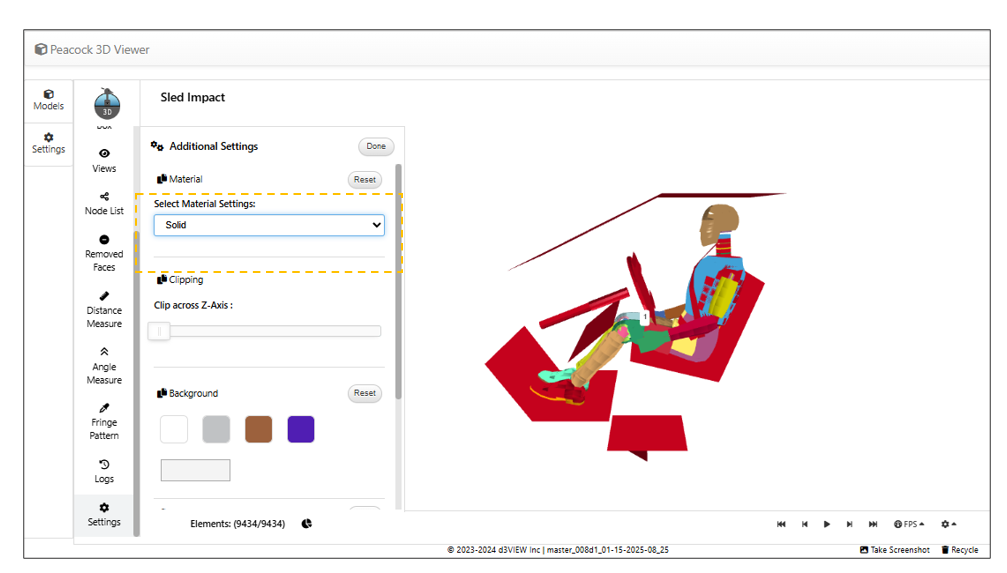
We have some additinal features like material settings , Background color, Lights etc.
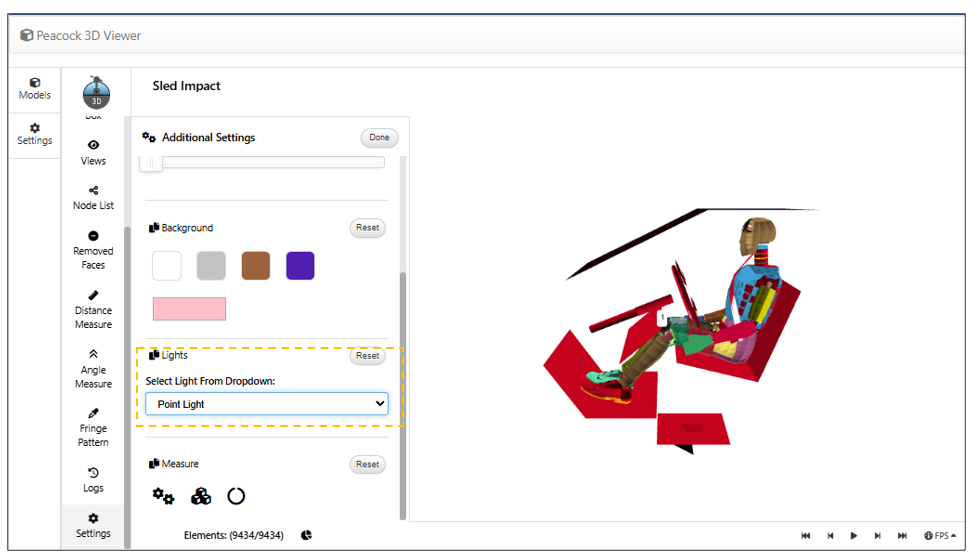
Below image show some of the additional settings available.
Light settings
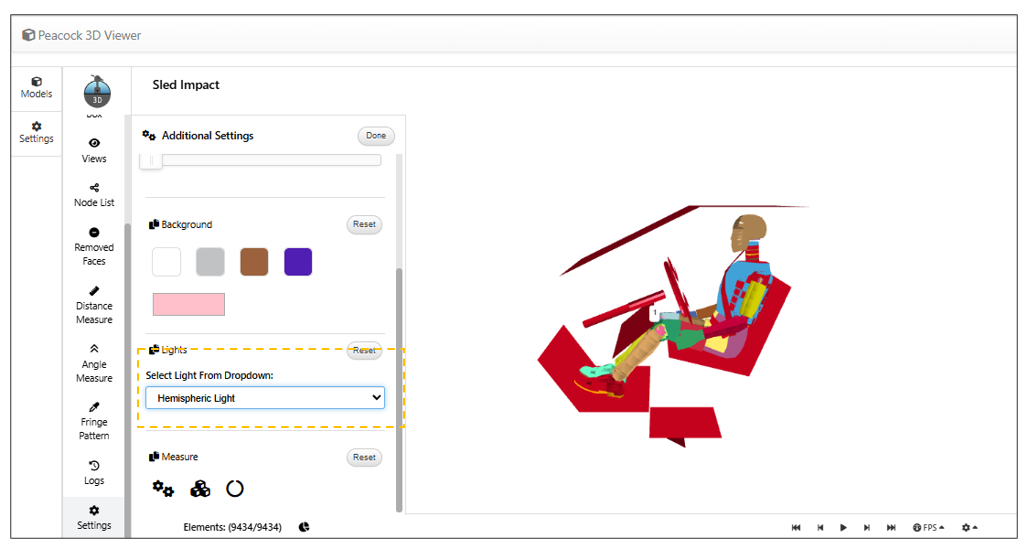
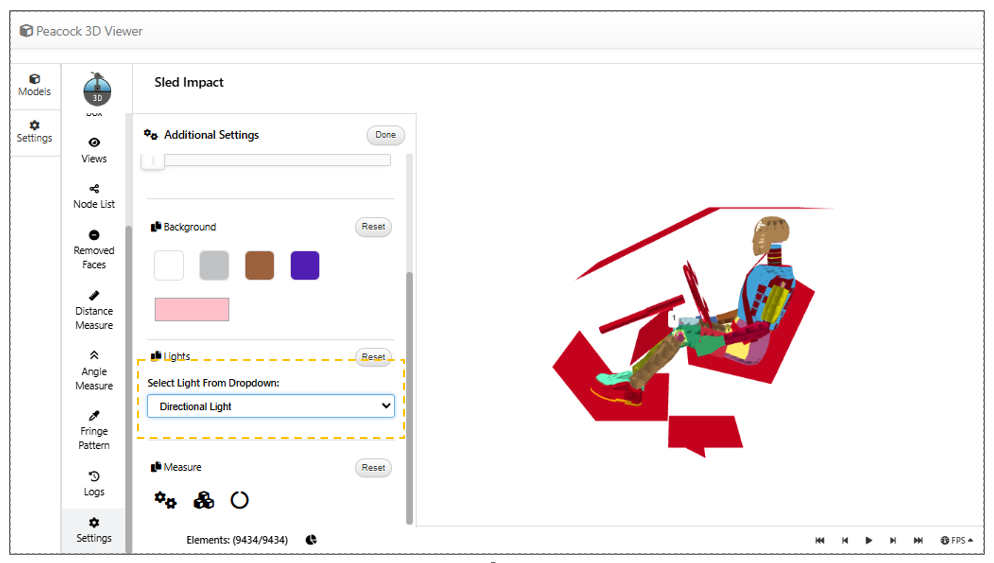
We have different light settings for the Peacock.
1/ Hemispheric
2/ Directional
3/ Point light
16.5. Hide/unhide parts
In Peacock model, selected parts can be hidden and the hidden parts will be shown on the canvas which can be restored back to the model
16.6. Keyboard events
Peacock model supports keyboard events: arrow keys can be used for rotating while key ‘a’ is used for autofit, and letters l, r, f, b, p are used for camera view
16.7. Connections
The Peacock Connections panel has been enhanced with a new split layout, improved filtering capabilities, and advanced visualization controls. These updates provide better clarity and control when working with connections in complex models.
Key Features:
- New split layout with:
- Tree view organized by connection type
- Table view with Master and Slave columns
Enhanced filtering options for precise navigation
- Visualization controls to:
- Hide unrelated parts
- Fade non-selected components
- Outline relevant elements
Split Layout Design:
- The updated panel introduces a dual-view interface:
- Tree View (Left Panel)
- Displays connections grouped by type, enabling quick exploration and hierarchical navigation.
- Table View (Right Panel)
- Shows detailed connection data, including Master and Slave relationships for better context and analysis.
16.8. Transform Part
The Peacock 3D Viewer in d3VIEW includes a Transform Part option in the part context menu, enabling Translate, Scale, and Rotate operations with Reset and Save controls.
16.9. General peacock settings
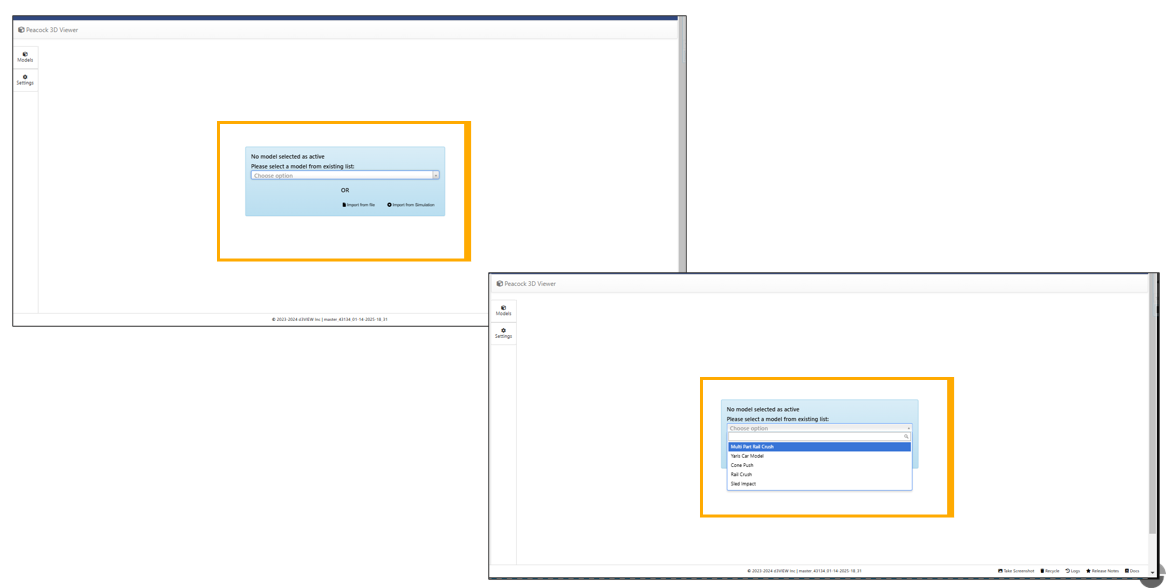
Peacock selection
In Peacock 3D, a message to select a model OR import options are shown when model is not selected in the beginning.
Part details
The context menu in Peacock model will have option to show the part details of the model. The part details will be shown on the canvas for the model.
Point of Rotation
The Peacock now supports point of rotation and this option is available in the context menu, we can add multiple points for rotation and switch between them using the context menu options.
Assemblies
Assemblies support is available for Peacock in the left side settings bar of the model view where a file from LS-Prepost can be uploaded with assemblies and shows a simple list of groups with part IDs
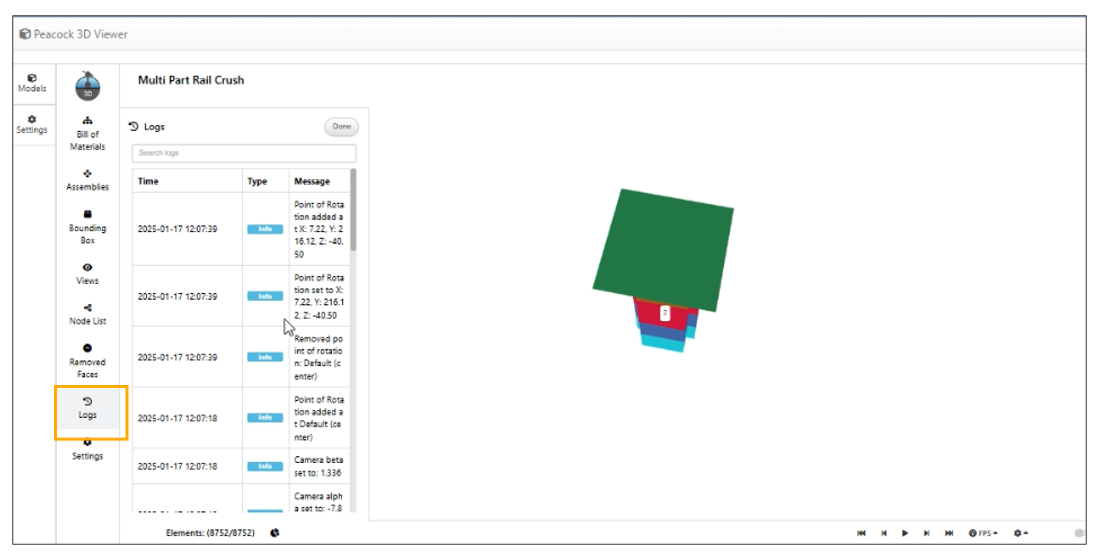
Logs
Real-Time Model Logs Added to Peacock
Overview
Peacock now displays model logs at the bottom of the page, providing real-time visibility into model execution.
The logs update dynamically as the model runs, allowing users to monitor execution progress, review status messages, and identify issues without leaving the model view.
Key Features
- Added a Model Logs panel at the bottom of the Peacock page
- Displays execution logs in real time as the model runs
- Dynamically updates log entries during execution
- Provides immediate visibility into model status and progress
- Simplifies monitoring and troubleshooting of model execution
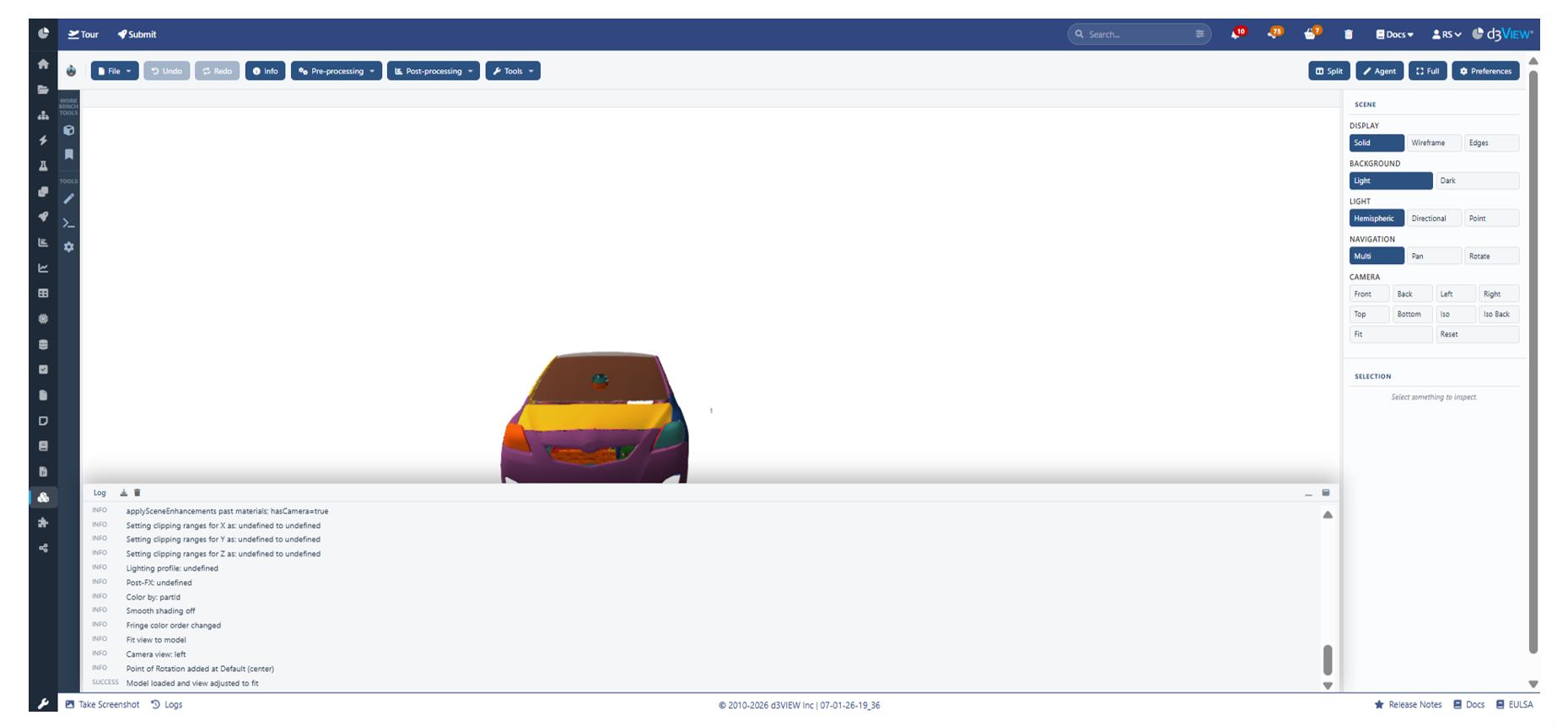
Logs are added to the Peacock model in the container
16.10. Measure Distance
Measure Distance Tool Added to Peacock
Overview
Peacock now includes a new Measure Distance tool under the Tools menu, allowing users to measure the distance between two parts directly within the model viewer.
This feature provides a quick and interactive way to determine distances between selected parts, eliminating the need for external measurement tools.
Key Features
- Added a Measure Distance tool to the Tools menu
- Measures the distance between two selected parts
- Performs measurements directly within the Peacock viewer
- Provides an interactive and intuitive measurement workflow
- Supports efficient model inspection and analysis
16.11. Explode
Inline Explode View Added to Peacock
Overview
Peacock now includes an inline Explode View for models, making it easier to inspect individual components without leaving the model viewer.
The Explode option is available under the Tools menu and allows users to interactively separate model components, improving visibility and accessibility when working with complex assemblies.
Key Features
- Added an Explode option under the Tools menu
- Supports inline exploded views directly within the Peacock viewer
- Allows interactive separation of model components
- Improves visibility of internal and overlapping parts
- Enhances model inspection and analysis workflows
16.12. Modal Animation
Modal (Eigenvalue) Animation Added to Peacock
Overview
Peacock now supports Modal (Eigenvalue) animation for models, enabling users to visualize eigenmodes interactively within the model viewer.
The feature includes Mode selection, Amplitude control, and playback controls, allowing users to explore and animate individual mode shapes for better understanding of structural behavior.
Key Features
- Added support for Modal (Eigenvalue) animation in Peacock
- Provides Mode selection for viewing individual eigenmodes
- Includes Amplitude control to adjust deformation scaling
- Supports animation playback directly within the viewer
- Enables interactive visualization of modal analysis results
Clipping
Peacock now supports clipping of the model in X ,Y and Z axes. This option is available in the right bottom group with crop icon.
Parallel view
Peacock now supports a new view called parallel view in the right bottom buttons group.
Sync models
Peacock now supports mp4 and GIF files, which and can be uploaded using import option and viewed side by side. We can enable the sync option in settings which will sync the animation controls for all the models.
16.13. AI Agent
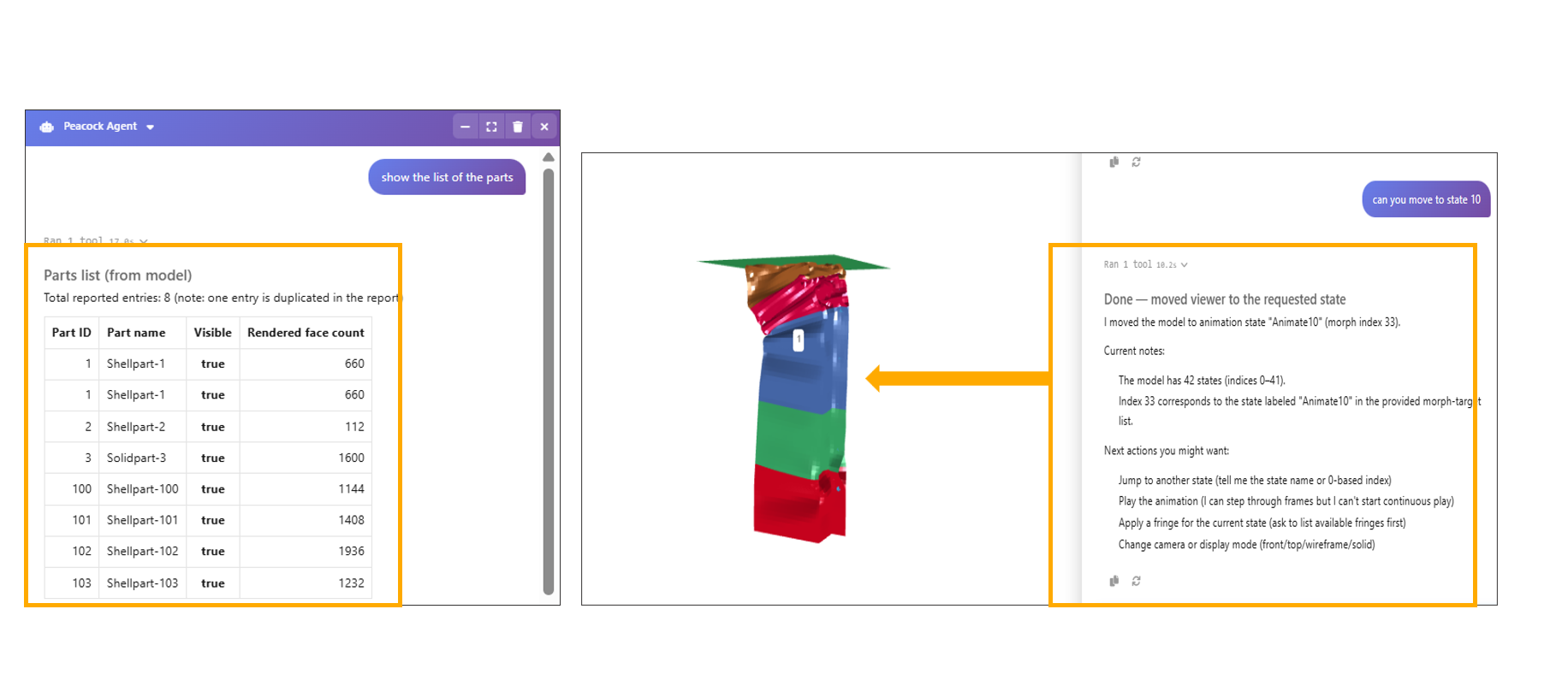
Peacock AI Agent – Enhanced Navigation and Exploration Capabilities
Overview
The AI Agent in Peacock now supports additional navigation and exploration capabilities, enabling improved interaction with simulation models and animation data.
Users can now:
- List available frames
- List all parts in the model
- Move directly to a selected frame
These enhancements improve model inspection, navigation efficiency, and AI-assisted exploration workflows.