5. Workflows Home Page
5.1. Workflows App Enhancement: All Workers Tab
Overview
The new Workflows app introduces an All Workers tab that provides a visual overview of available workers through thumbnail representations.
Description
The All Workers tab displays each worker as a thumbnail, allowing users to quickly browse and identify available workers. Each thumbnail can be clicked to open an enlarged preview, providing better visibility and understanding of the worker.
Enhancements
- Thumbnail View Workers are displayed as thumbnails for easy browsing.
- Enlarged Preview Clicking on a thumbnail opens a larger view for better clarity.
5.2. Header Category Filters
Overview
The Library Workflows tab now includes header filters that allow workflows to be filtered by category for improved navigation and organization.
Description
With this enhancement, users can utilize filters available in the header section of the Library Workflows tab to quickly narrow down workflows based on predefined categories. This simplifies browsing, especially in large workflow libraries.
Enhancements
- Header Category Filters Filters are available in the header to refine workflows by category.
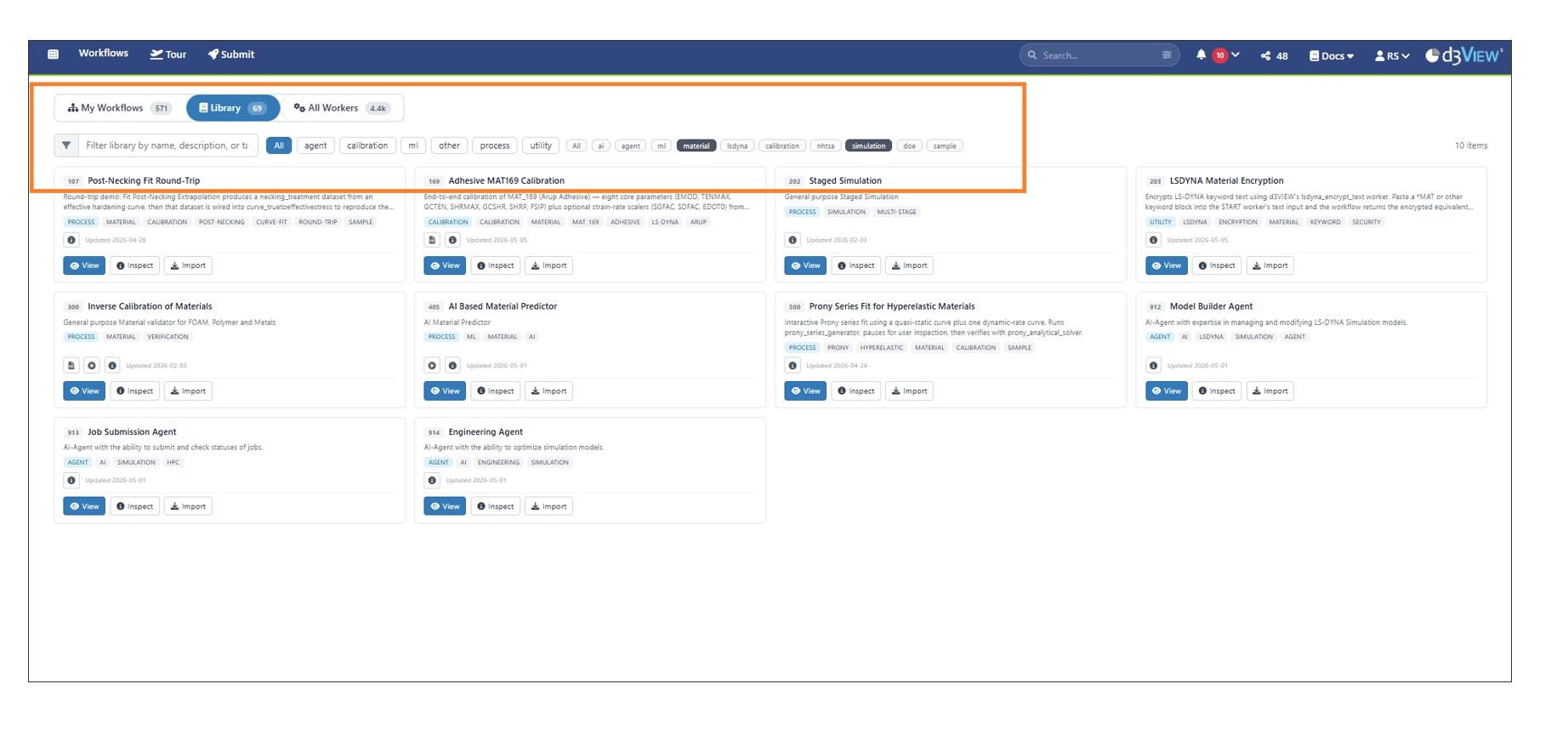
Header Category Filters
5.3. Library Workflow Resource Icons
Overview
In the new Workflows Home app, Library Workflow cards have been enhanced to include quick-access icons for related resources such as PDF, PPT, and Video.
Description
Library Workflow cards now display resource icons that provide direct access to supporting materials. These icons allow users to quickly open documentation, presentations, or videos associated with a workflow, improving usability and learning efficiency.
Enhancements
- PDF Icon Provides quick access to documentation related to the workflow.
- PPT Icon Links to presentation materials for the workflow.
- Video Icon Opens video resources demonstrating or explaining the workflow.
Benefits
- Enables faster access to supporting resources.
- Improves onboarding and understanding of workflows.
- Reduces time spent searching for documentation and materials.
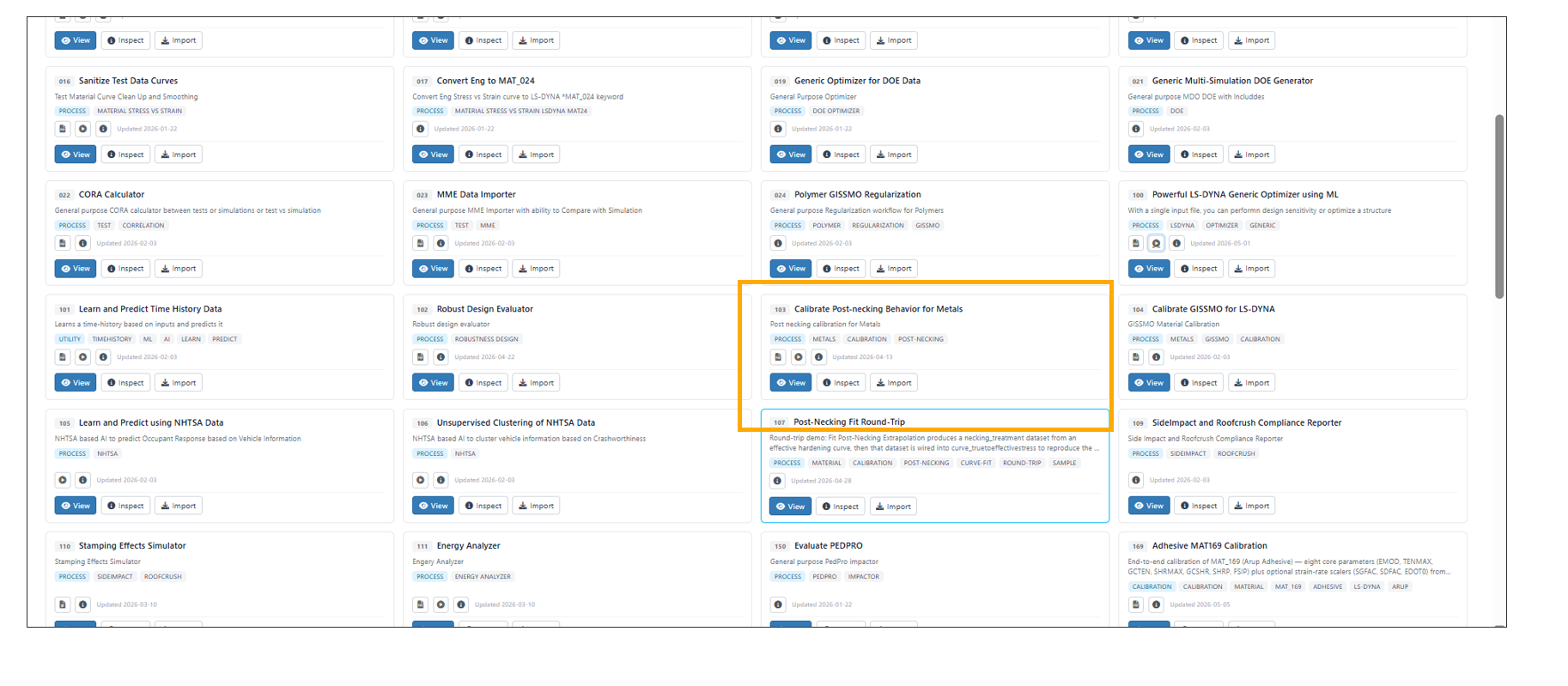
Resource Icons
5.4. Library Workflow Graphs
Enhancement Details
The workflow visualization experience has been improved by introducing dedicated carousel diagrams for each case within the supported Library Workflows.
Supported Workflows
| Workflow ID | Enhancement |
|---|---|
103 |
Added per-case carousel diagrams |
104 |
Added per-case carousel diagrams |
Features
- Displays workflow diagrams on a per-case basis.
- Enables easier navigation between workflow cases.
- Improves workflow visualization and usability.
- Provides clearer understanding of workflow execution paths.
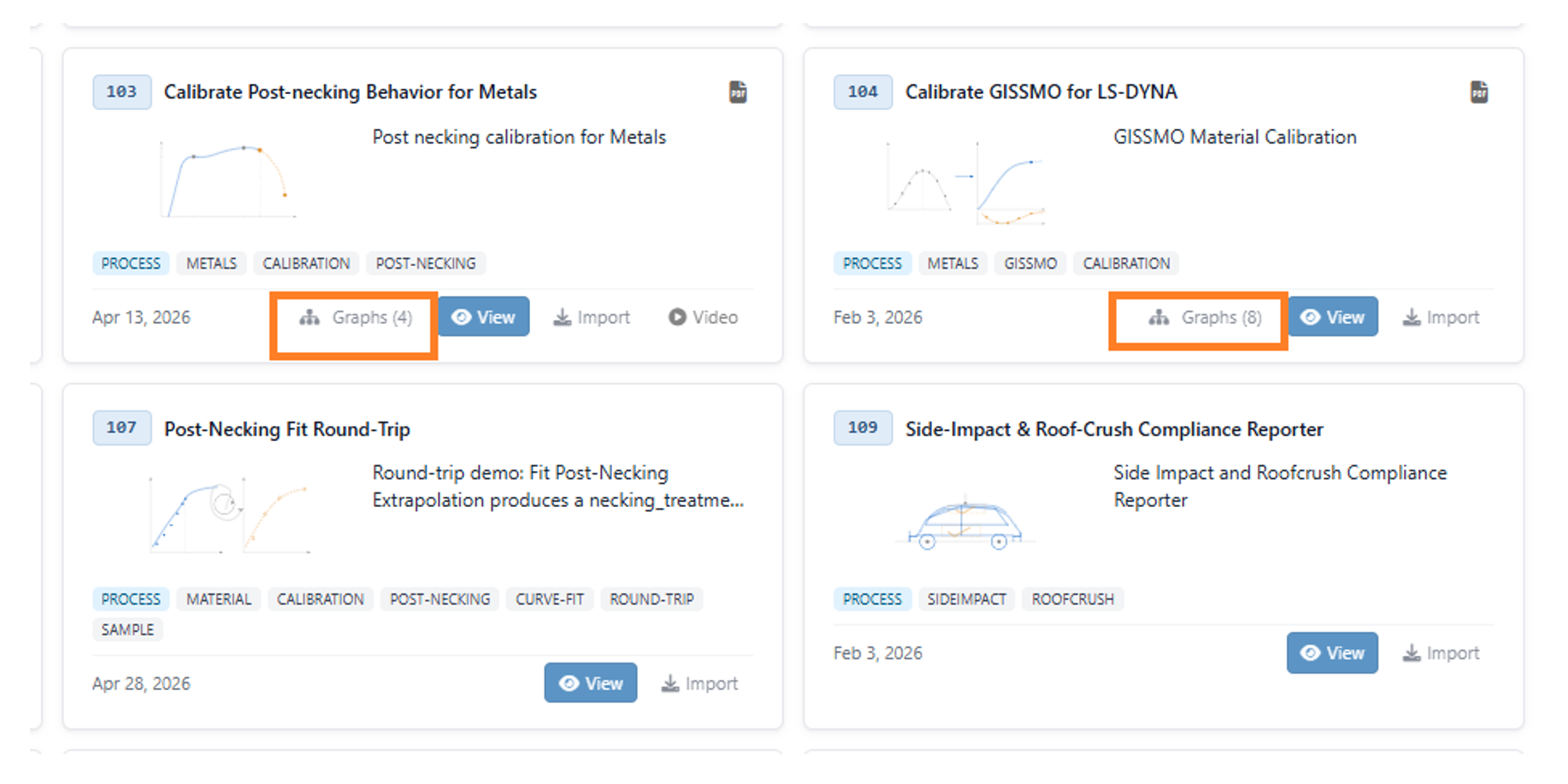
Workflow Graphs
Added per-case diagram carousels to workflow cards in the Workflow Library.
5.5. Visual Thumbnails
Overview
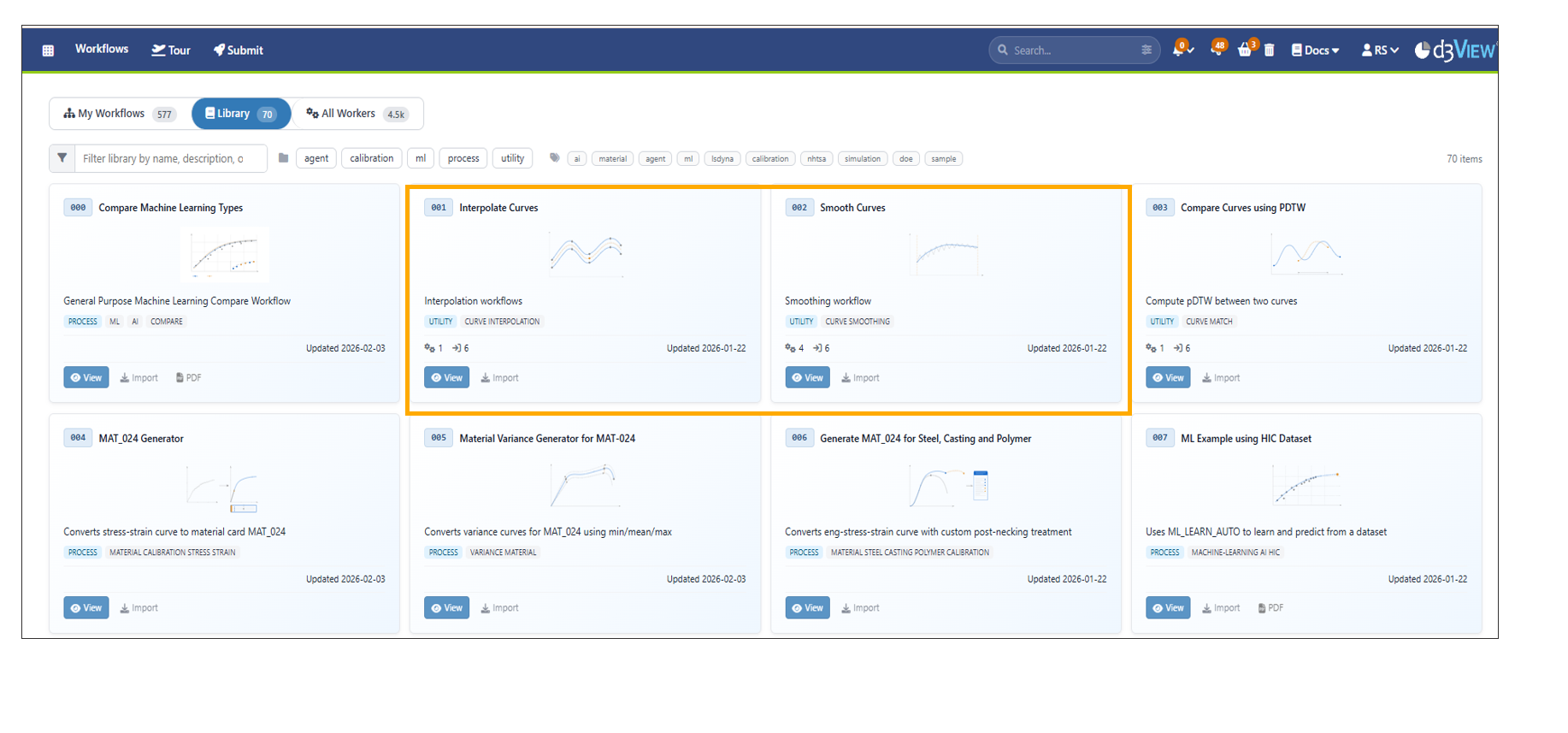
The Workflow Library has been enhanced with visual thumbnails for all workflows, providing a more intuitive and engaging browsing experience.
Description
Each workflow in the library is now represented with a visual thumbnail, allowing users to quickly identify and differentiate workflows. This improves usability by offering a graphical overview instead of relying solely on text-based listings.
Enhancements
- Visual Thumbnails for All Workflows Every workflow in the library now includes a thumbnail preview.
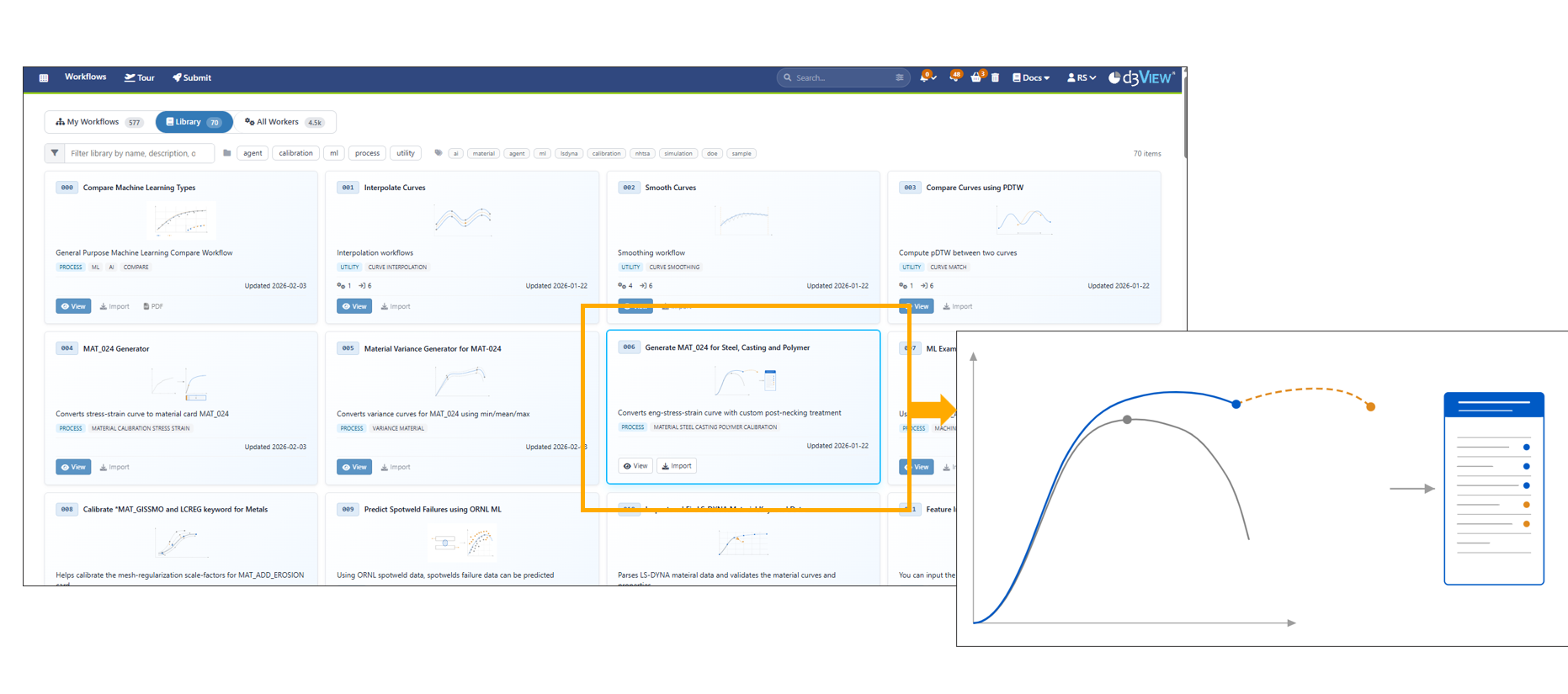
Visual Thumbnails
Description
All workflows in the library now display key information such as ID badges and workflow names. Additionally, a category-based filter has been introduced to help users quickly locate workflows relevant to their needs.
Enhancements
- ID Badges Each workflow is assigned a unique identifier displayed as a badge for easy reference.
- Workflow Names Clear and descriptive names are shown for all workflows.
- Category Filter Enables filtering of workflows based on predefined categories.
ID Badges
5.6. View Modal Improvements
Overview
All library workflows, when opened using the View button, now display additional details and options within an enhanced workflow modal.
Description
The workflow modal has been updated to provide a more comprehensive view of each workflow. Users can now access metadata, visualize the workflow canvas, and utilize import options directly from the modal interface.
5.7. Workflow Examples Sorting Support
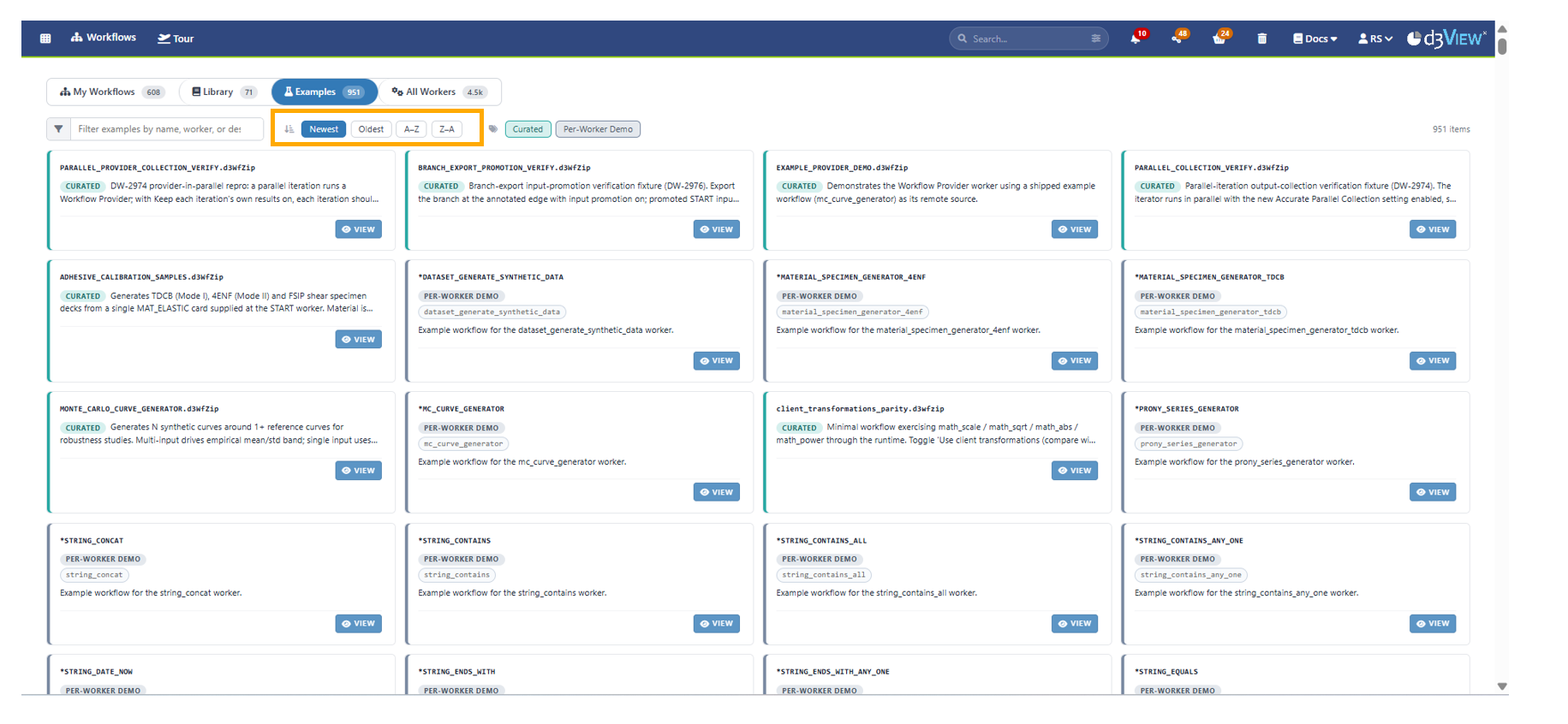
The Examples tab in Workflows now supports sorting, with sorting options conveniently available in the header next to the search bar.
Overview
Sorting functionality has been added to the Examples tab in Workflows to improve navigation and discovery of available example workflows.
Features
- Supports sorting of workflow examples directly within the Examples tab
- Sorting controls are available in the header beside the search bar
- Improves usability and workflow discovery experience
- Enables faster access to relevant example workflows
Examples Sorting
Some of the New worker examples added to Workflows are documented below:
5.8. BRANCH_EXPORT_PROMOTION_VERIFY
A new example workflow, BRANCH_EXPORT_PROMOTION_VERIFY, is now available in Workflows for branch-export verification.
Overview
The BRANCH_EXPORT_PROMOTION_VERIFY workflow is designed to validate and verify branch export and promotion operations within Workflows. It provides a structured example for testing export behavior, branch validation, and promotion-related processes.
Features
- Demonstrates branch export verification workflows
- Supports validation of branch promotion processes
- Provides a ready-to-use example configuration
- Helps users test and confirm export integrity
5.9. EXAMPLE_PROVIDER_DEMO
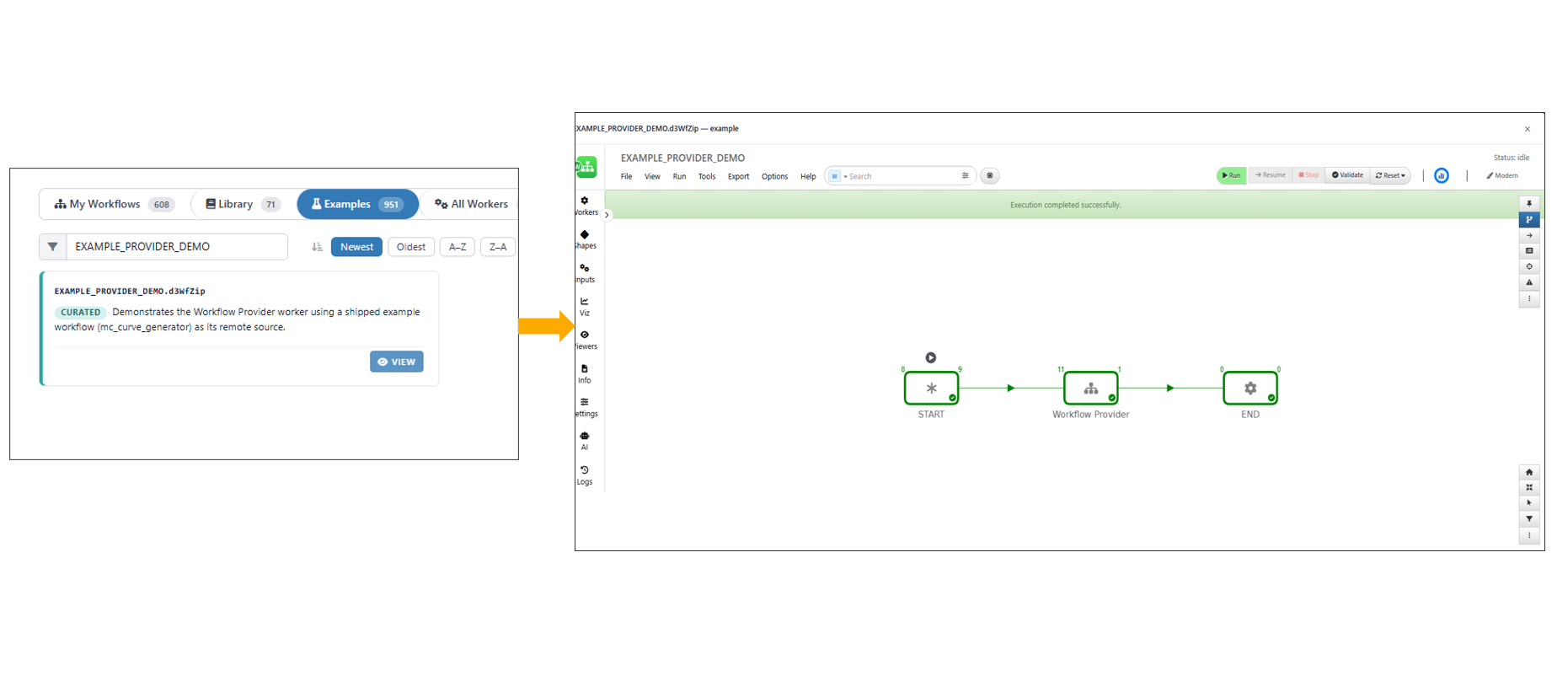
A new example workflow, EXAMPLE_PROVIDER_DEMO, is now available in the Examples tab to help verify and demonstrate the Workflow Provider worker.
Overview
The EXAMPLE_PROVIDER_DEMO workflow provides a ready-to-use example for validating and demonstrating the functionality of the Workflow Provider worker within Workflows.
Features
- Demonstrates Workflow Provider worker capabilities
- Provides a sample configuration for validation and testing
- Helps verify Workflow Provider integration and execution flow
- Available directly from the Examples tab for quick access
EXAMPLE_PROVIDER_DEMO
5.10. PARALLEL_COLLECTION_VERIFY
A new example workflow, PARALLEL_COLLECTION_VERIFY, is now available in the Examples tab in Workflows for parallel collection verification.
Overview
The PARALLEL_COLLECTION_VERIFY workflow is designed to demonstrate and validate parallel collection processing within Workflows.
Features
- Demonstrates parallel collection execution
- Supports verification of concurrent data processing
- Provides a ready-to-use example workflow configuration
- Helps validate correctness and performance of parallel workflows
5.11. ADHESIVE_CALIBRATION_SAMPLES
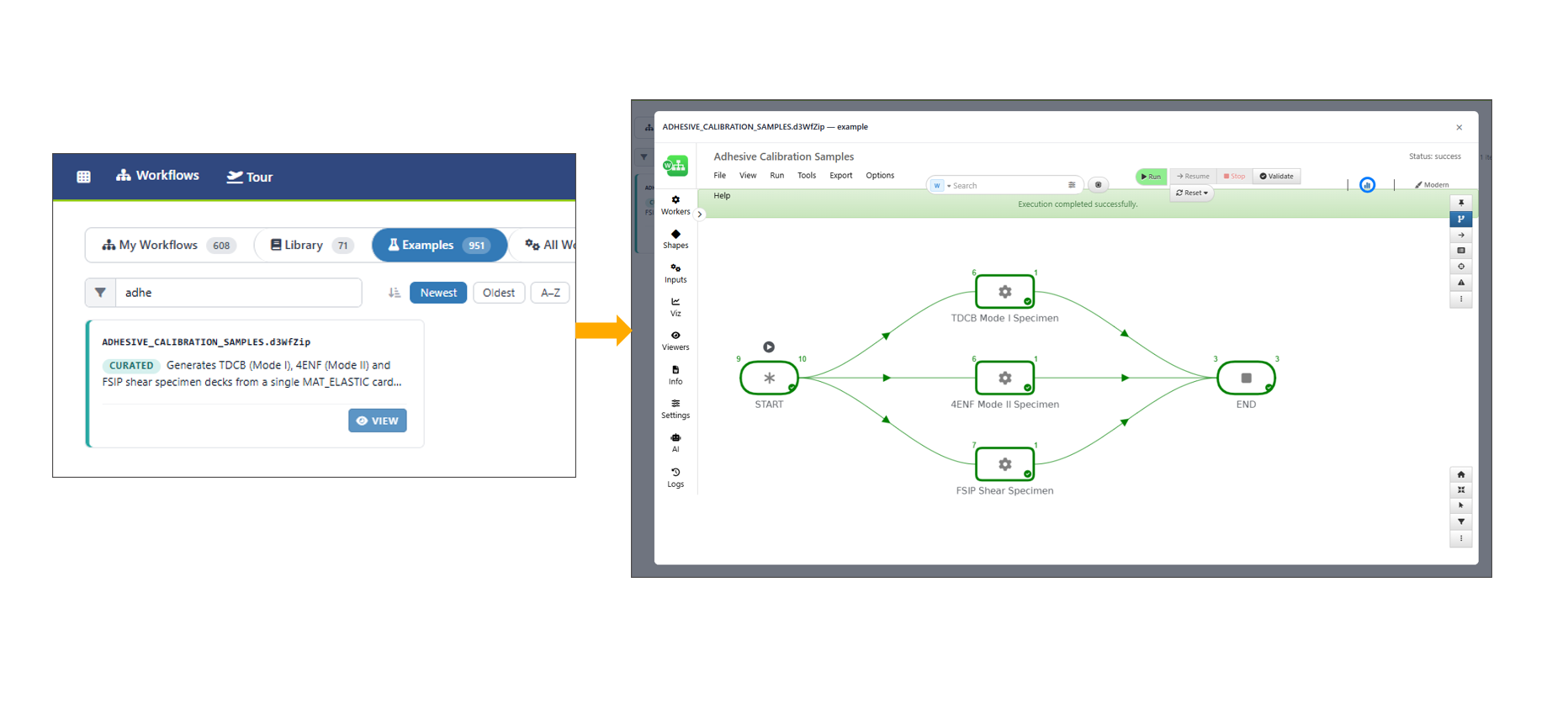
A new example workflow, ADHESIVE_CALIBRATION_SAMPLES, is now available in the Examples tab.
Overview
The ADHESIVE_CALIBRATION_SAMPLES workflow provides a set of specimen generator workers used for adhesive calibration studies. It includes TDCB, 4ENF, and FSIP specimen generators that can be executed and verified within Workflows.
Features
- Includes TDCB specimen generator worker
- Includes 4ENF specimen generator worker
- Includes FSIP specimen generator worker
- Supports execution and verification of adhesive calibration workflows
- Available as a ready-to-use example in the Examples tab
ADHESIVE_CALIBRATION_SAMPLES
5.12. CURVES_EXTRAPOLATE_001 Example Workflow
Overview
A new example workflow named CURVES_EXTRAPOLATE_001 is now available in the Examples tab of the Workflows page. This example demonstrates curve extrapolation techniques within the workflow environment.
Purpose
This example is designed to:
- Demonstrate curve extrapolation methods using workflow-based processing.
- Help users understand how to extend curve data beyond available simulation limits.
- Provide a reference implementation for extrapolation-based analysis workflows.
- Enable validation of curve behavior in extended time or value ranges.
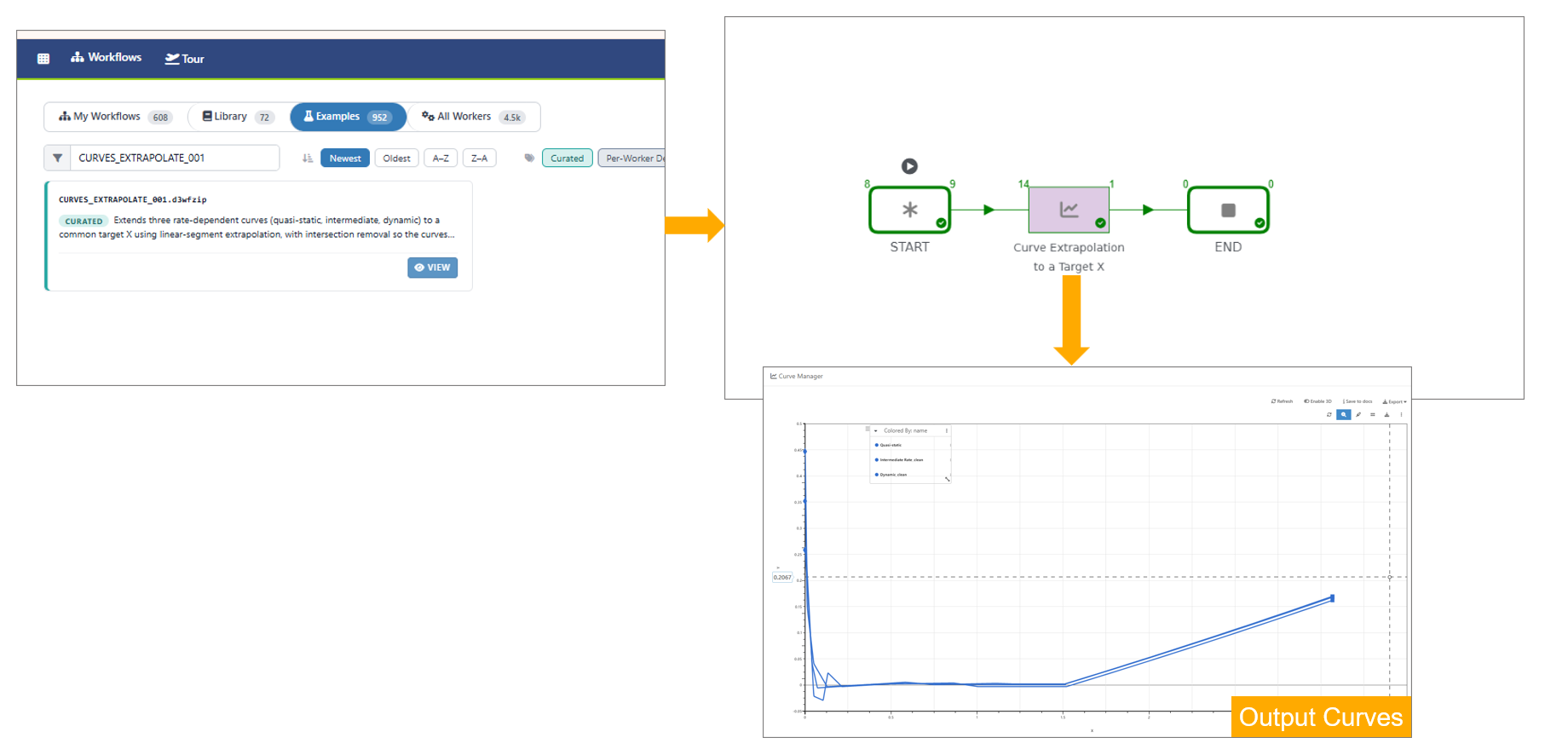
CURVES_EXTRAPOLATE_001
5.13. DATASET_GENERATE_SYNTHETIC_DATA Enhancement
The *DATASET_GENERATE_SYNTHETIC_DATA worker now supports multiple mode selections as input and generates synthetic data as output.
Overview
The *DATASET_GENERATE_SYNTHETIC_DATA worker has been enhanced to improve flexibility and data generation capabilities by allowing users to select multiple modes simultaneously.
Features
- Supports multiple mode selections as input
- Generates synthetic data based on selected modes
- Enhances flexibility in dataset creation workflows
- Improves coverage of synthetic data generation scenarios
Usage
- Open the workflow containing
*DATASET_GENERATE_SYNTHETIC_DATA. - Select one or more available modes as input.
- Execute the worker.
- Review the generated synthetic dataset output.
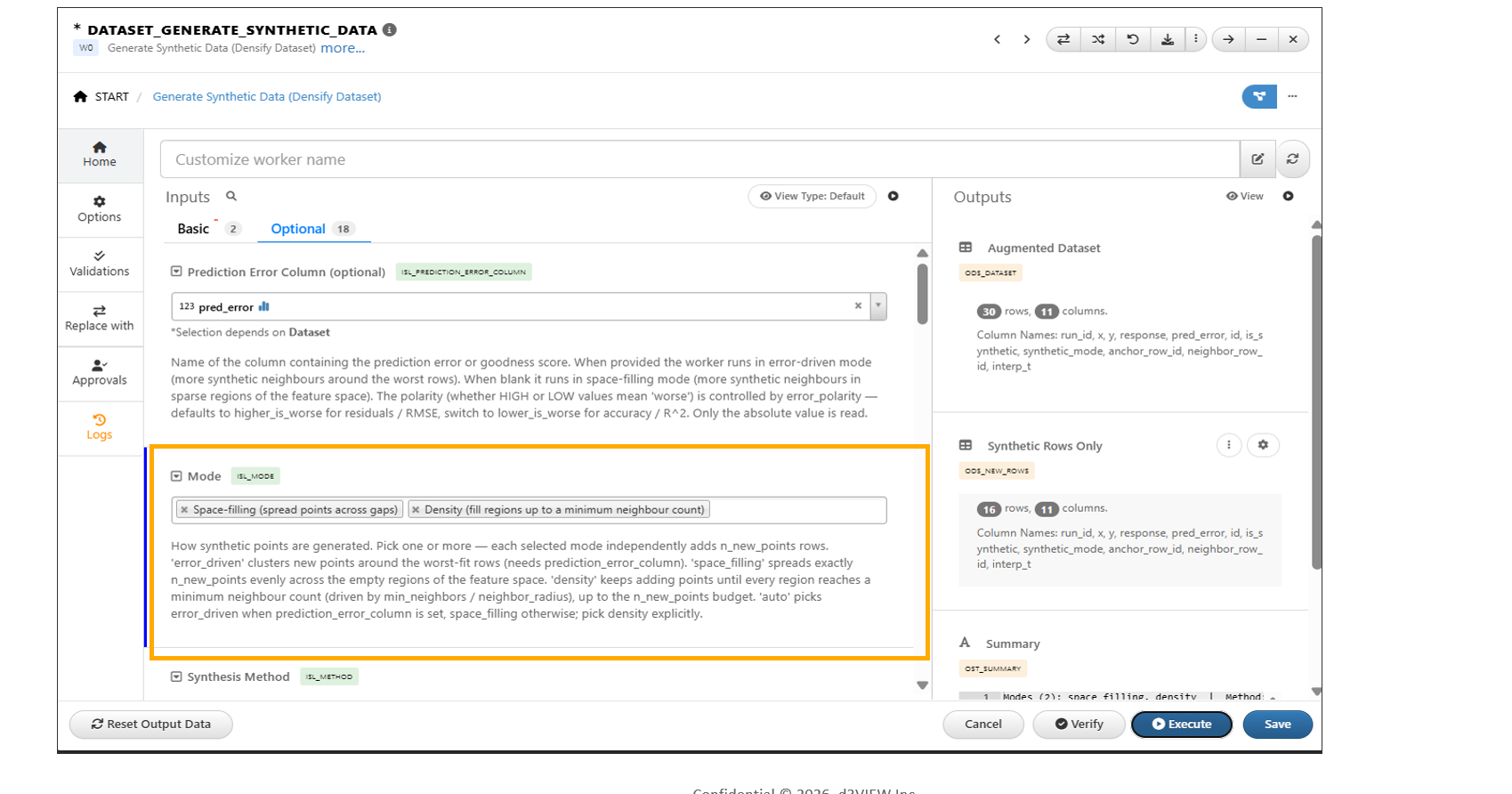
DATASET_GENERATE_SYNTHETIC_DATA
5.14. AREA_BETWEEN_CURVES
Overview
A new example workflow, *AREA_BETWEEN_CURVES, is now available for performing curve-based analytical calculations and DSC peak evaluation. The workflow demonstrates multiple approaches for calculating enclosed areas between datasets and reference baselines.
Workflow Components
The workflow includes three workers:
- Area Between Curve and Baseline
- Calculates the enclosed area between a selected curve and a defined baseline.
- Useful for signal integration and energy-related calculations.
- Area Between Two Curves
- Computes the area difference between two independent curves.
- Supports comparative analysis between datasets.
- DSC Peak Analysis
- Performs Differential Scanning Calorimetry (DSC) peak analysis.
- Helps identify and evaluate thermal transition peaks and integrated peak areas.
Key Features
- Ready-to-use example workflow for curve analysis.
- Demonstrates multiple area calculation methods.
- Supports DSC thermal analysis use cases.
- Useful for validation, analytics, and material characterization workflows.
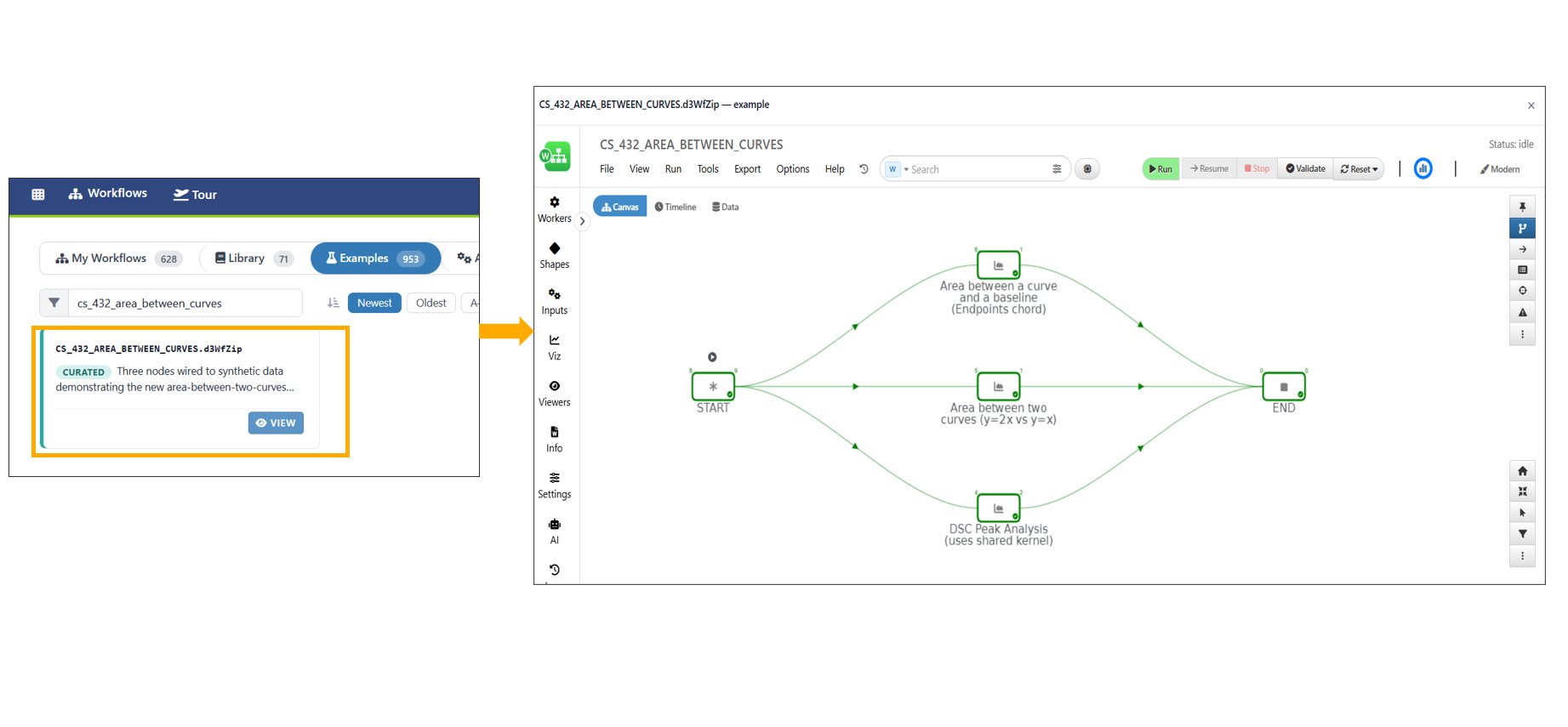
AREA BETWEEN CURVES
5.15. SBDO DESIGN_ADEQUACY_GUARDRAIL
Overview
A new example workflow demonstrating the SBDO_DESIGN_ADEQUACY_GUARDRAIL has been added to the Workflow Examples page.
This example provides a ready-to-use reference for configuring and executing the SBDO_DESIGN_ADEQUACY_GUARDRAIL workflow, helping users understand its setup and integrate it into their own workflow pipelines.
Key Features
- Added a new example workflow for
SBDO_DESIGN_ADEQUACY_GUARDRAIL - Available from the Workflow Examples page
- Demonstrates the configuration and execution of the workflow
- Serves as a reference for building similar workflow pipelines
- Simplifies onboarding and learning for new users
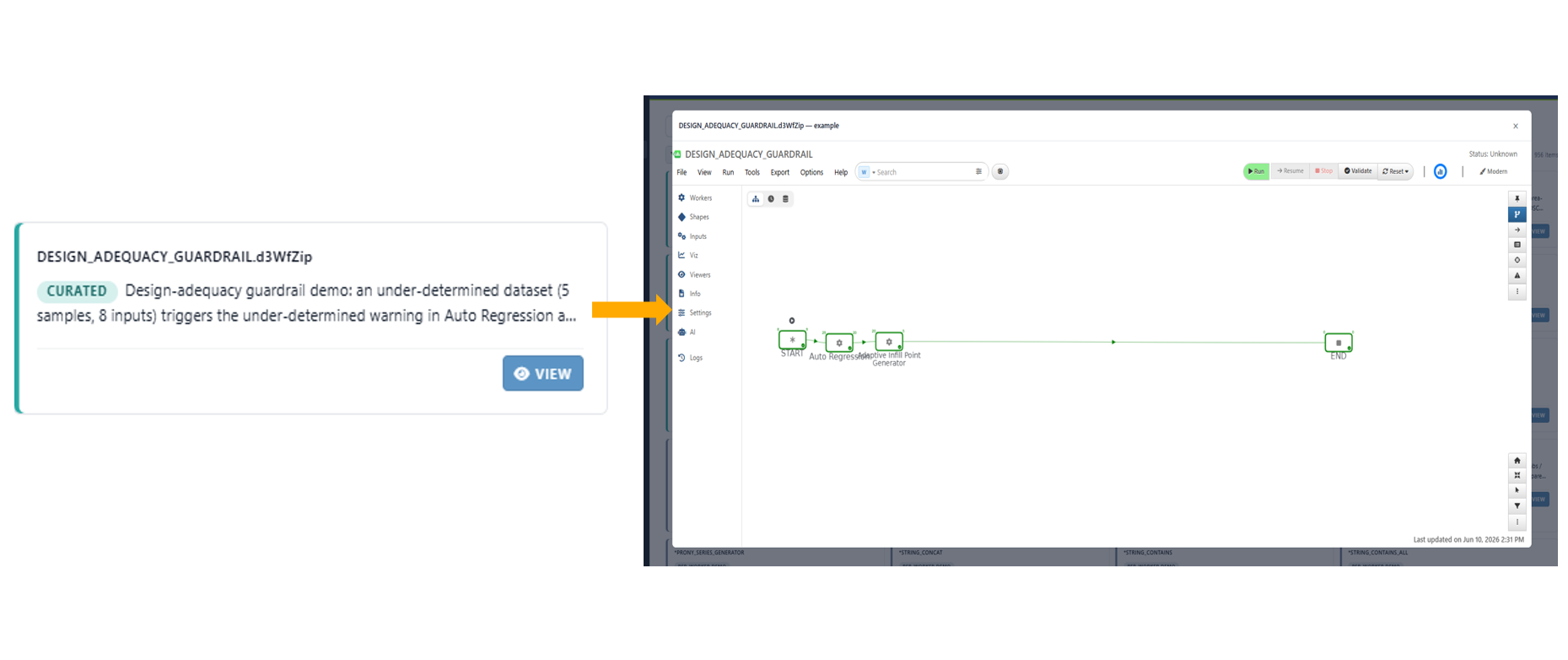
SBDO_DESIGN_ADEQUACY_GUARDRAIL
5.16. DOE_ADAPTIVE_INFILL
Overview
A new example workflow for DOE_ADAPTIVE_INFILL is now available on the Workflow Examples page.
This example demonstrates how to configure and execute the DOE_ADAPTIVE_INFILL worker, providing users with a practical reference for implementing adaptive infill strategies in Design of Experiments (DOE) workflows.
Key Features
- Added a new example workflow for
DOE_ADAPTIVE_INFILL - Available from the Workflow Examples page
- Demonstrates the configuration and execution of adaptive infill workflows
- Serves as a reference for building DOE optimization workflows
- Simplifies learning and adoption of adaptive infill capabilities
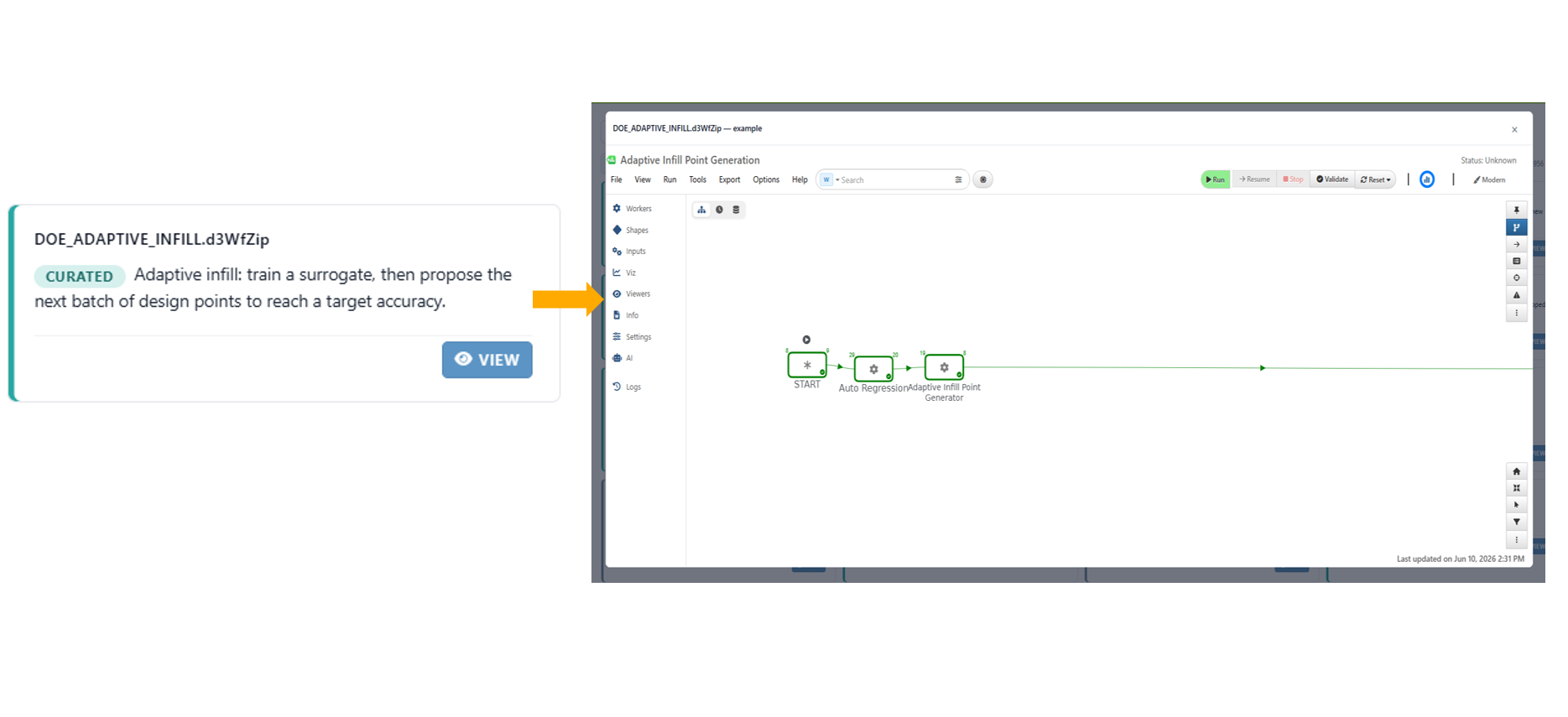
DOE_ADAPTIVE_INFILL
5.17. A New PEDPRO_SCORECARD_CALCULATOR Workflow Example Added
Overview
A new workflow example, *PEDPRO_SCORECARD_CALCULATOR, has been added to the Workflow Examples library.
This example demonstrates how to calculate pedestrian protection scorecards using a preconfigured workflow, providing users with a ready-to-use reference for building and customizing pedestrian protection assessment workflows.
Key Features
- Added the
*PEDPRO_SCORECARD_CALCULATORworkflow example - Available from the Workflow Examples library
- Demonstrates pedestrian protection scorecard calculation
- Provides a preconfigured workflow for quick evaluation setup
- Serves as a reference for creating and customizing similar workflows

PEDPRO_SCORECARD_CALCULATOR
5.18. A New GAUSSIAN_SPECTRUM_GENERATOR Workflow Example Added
Overview
A new workflow example, *GAUSSIAN_SPECTRUM_GENERATOR, has been added to the Workflow Examples library.
This example demonstrates how to generate a Gaussian spectrum using a preconfigured workflow, providing users with a ready-to-use reference for creating and customizing Gaussian spectrum generation workflows.
Key Features
- Added the
*GAUSSIAN_SPECTRUM_GENERATORworkflow example - Available from the Workflow Examples library
- Demonstrates Gaussian spectrum generation using a preconfigured workflow
- Provides a reusable reference for building spectrum generation workflows
- Simplifies workflow setup for Gaussian spectrum analysis

GAUSSIAN_SPECTRUM_GENERATOR
5.19. WORKER_SEARCH Worker Added to Workflows
Overview
The WORKER_SEARCH worker has been added to Workflows, enabling users to search for and retrieve workflow workers directly within workflow executions.
This worker allows workflows to dynamically locate worker definitions based on search criteria, making it easier to discover, reference, and automate worker selection as part of workflow logic.
5.20. Delete Confirmation for Responses
Overview
Reporter slides now include a confirmation prompt when responses are deleted using the keyboard Delete key, helping prevent accidental data removal.
Description
With this enhancement, any attempt to delete responses from slides using the keyboard triggers a confirmation dialog. This ensures that users explicitly confirm their action before the content is permanently removed.
Enhancements
- Delete Confirmation Prompt A confirmation dialog is displayed when responses are deleted using the Delete key.
5.21. Build Workflows with AI
Overview
A new Build Workflows with AI button is now available on the Workflows page, providing an AI-assisted workflow creation experience.
This feature enables users to interactively create workflows using AI guidance, with saved conversations displayed on the left panel and workflow building options available on the right panel.
Features
- AI-assisted workflow creation
- Dedicated Build Workflows with AI entry point on the Workflows page
- Saved conversation history displayed in the left panel
- Workflow building and configuration options available in the right panel
- Interactive workflow generation experience
- Streamlined workflow design assistance
Interface Layout
The left panel displays:
- Saved AI conversations
- Previous workflow-building sessions
- Conversation history for workflow generation
The right panel provides:
- Workflow building controls
- AI-generated workflow suggestions
- Workflow configuration options
- Interactive workflow editing capabilities
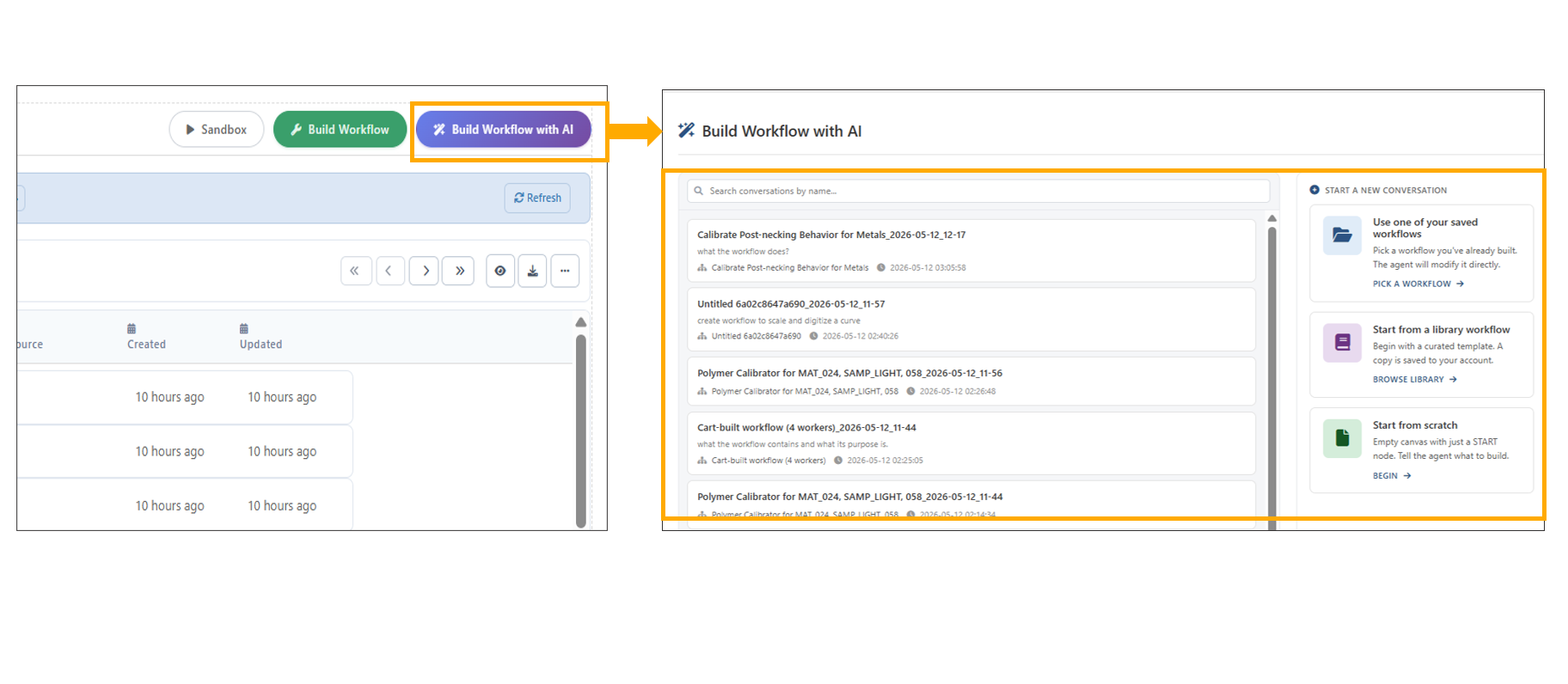
Build Workflows with AI
5.22. Build Workflows with AI – Conversation-Based Workflow Types
Overview
In Build Workflows with AI, users can now create conversations for different workflow types. This enhancement enables the AI agent to perform type-specific tasks based on the provided prompts, improving the relevance and accuracy of generated workflows.
Each conversation is associated with a workflow type, allowing the AI to adapt its behavior, suggestions, and generated outputs accordingly.
Features
- Support for multiple workflow types within AI conversations
- Type-specific AI task handling based on user prompts
- Improved contextual understanding for workflow generation
- Enhanced flexibility in workflow creation
- Better alignment between user intent and generated workflows
Functionality
When a user starts a conversation in Build Workflows with AI, they can:
- Select or define a workflow type
- Provide prompts tailored to that workflow type
- Receive AI responses customized to the selected type
- Generate workflows that align with the selected domain or use case
The AI agent dynamically adjusts:
- Task interpretation
- Workflow structure suggestions
- Output formatting and configuration options
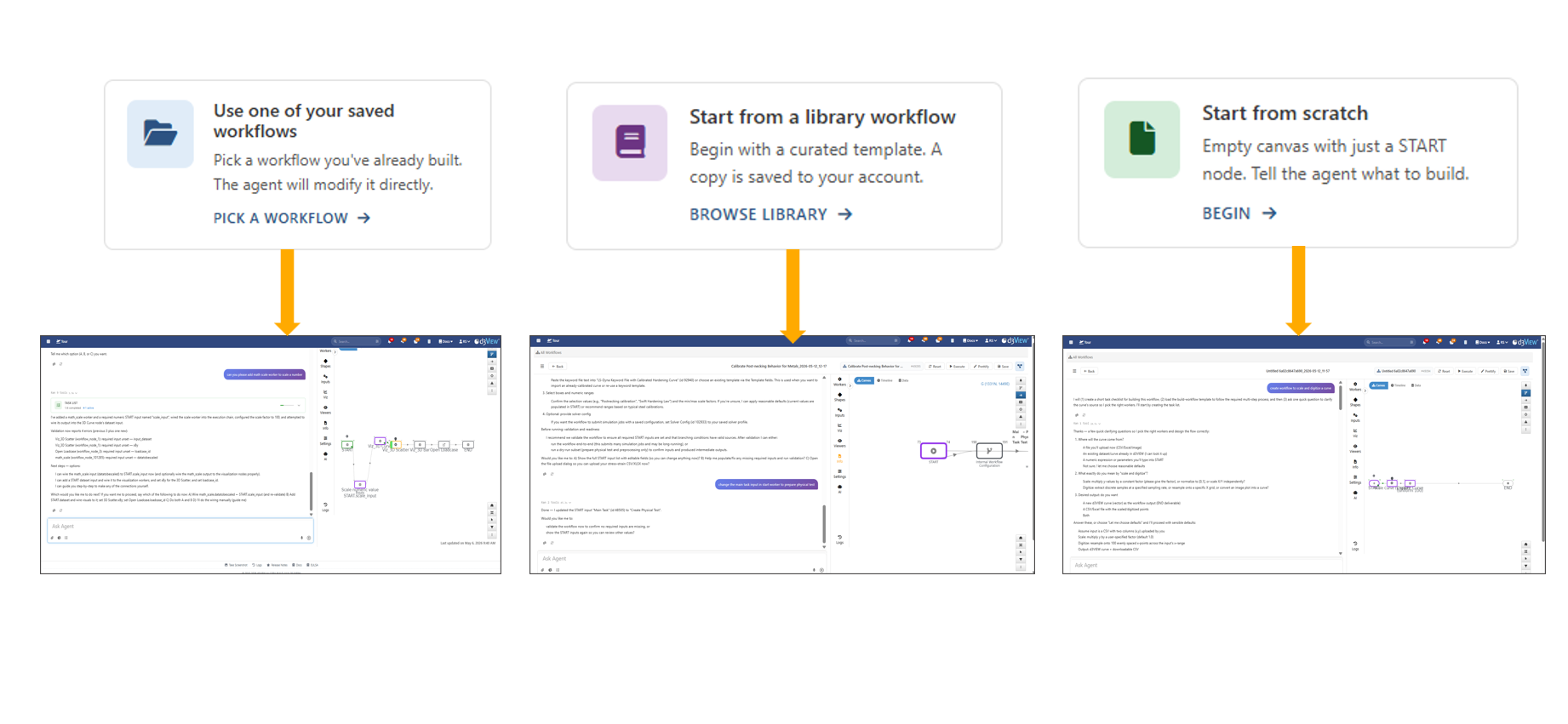
Build Workflows with AI Conversations
Executions
5.23. Executions Column Added to Workflows Page
Overview
The Workflows page now includes a new Executions column that provides quick access to workflow execution details.
This column displays an interactive button that reflects execution information based on:
- The total number of workflow runs
- Inputs updated within workers
The enhancement improves execution tracking and provides better visibility into workflow activity directly from the Workflows page.
Key Features
- Added a dedicated Executions column to the Workflows page
- Displays execution-related details through an interactive button
- Tracks workflow runs and worker input updates
- Provides faster visibility into workflow execution activity
- Improves workflow monitoring and navigation