d3VIEW makes navigation more efficient with advanced filtering for Dashboard pages. Populate your dashboard with important application pages that you can sift through and access quickly on the same page. Each page presents your application metadata in an advanced data table.
UPDATE: Add page and Dashboard pages panel is now located at the top of the page instead of the left side bar.

Each tab is a different application page.
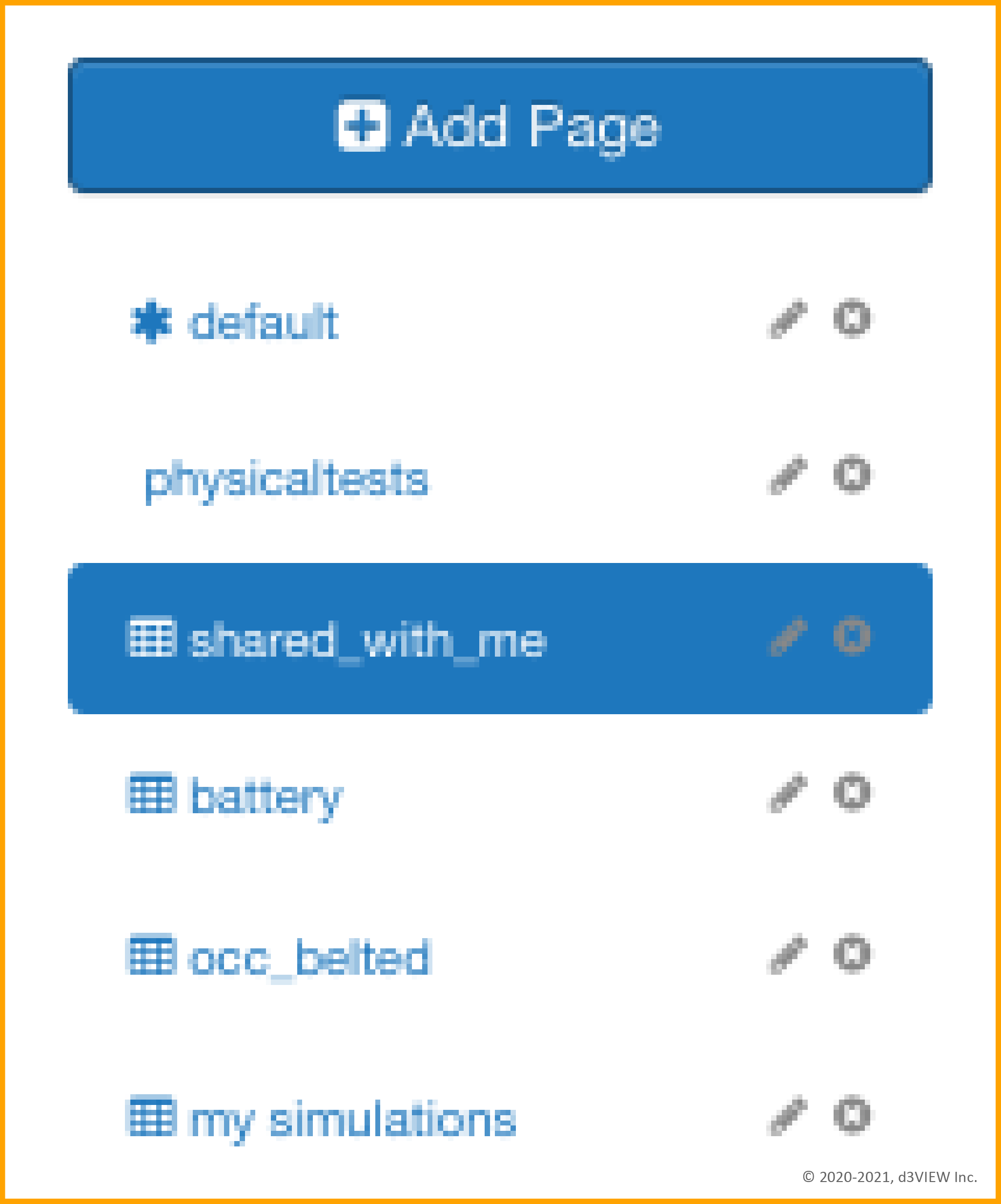
Then, customize your filters to only show the most relevant information. Filters stay present even after closing out of the platform. The attraction of this lies in the capability to make endless amount of application pages with customized or more specific filters.
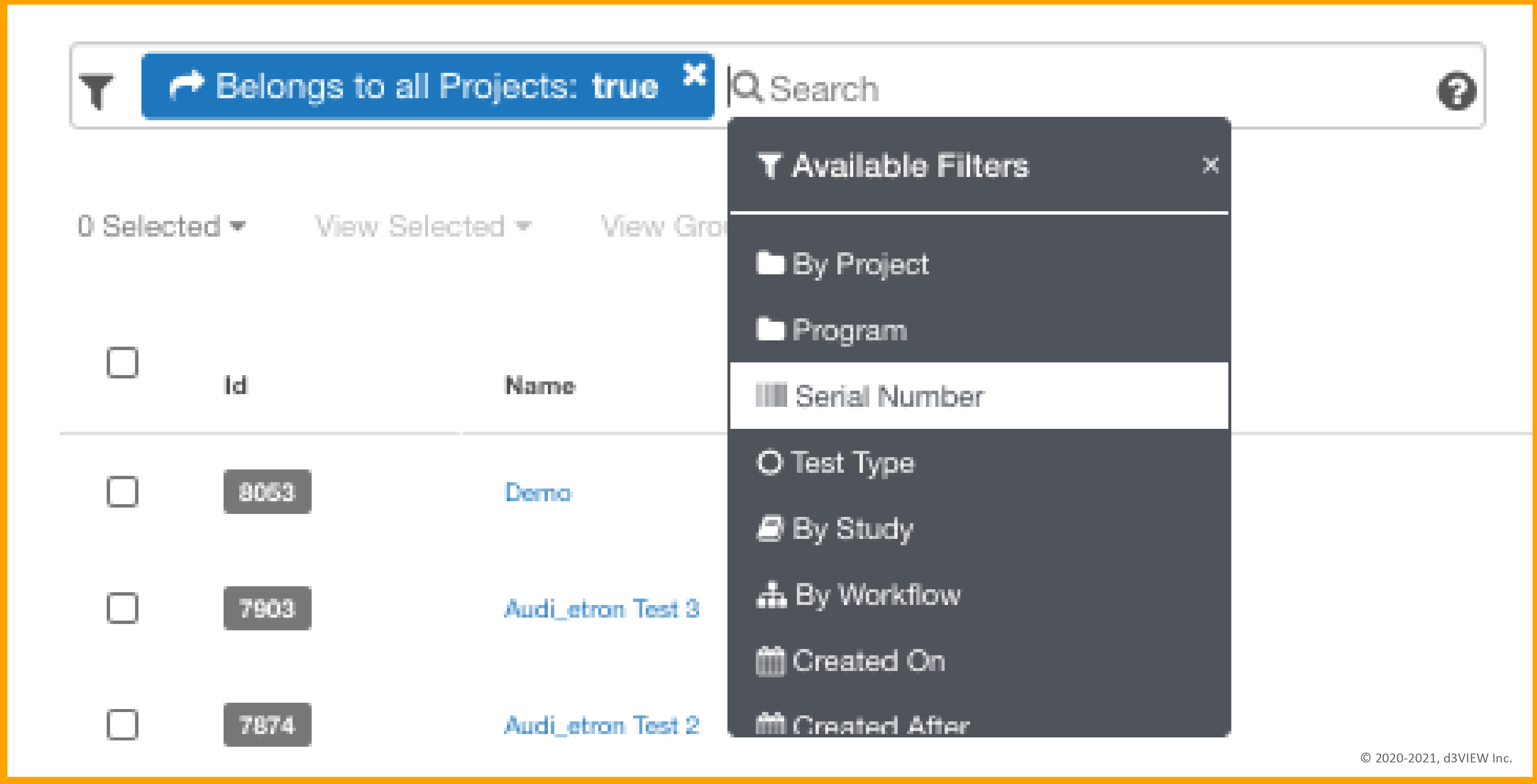
Don’t be afraid to create multiple dashboards for the same application with different filters. For example, you could create 3 dashboards dedicated to simulations, one filtered to show simulations for a particular project, another filtered to show simulations with a particular type of response and another filtered to show simulations that have been shared with you.
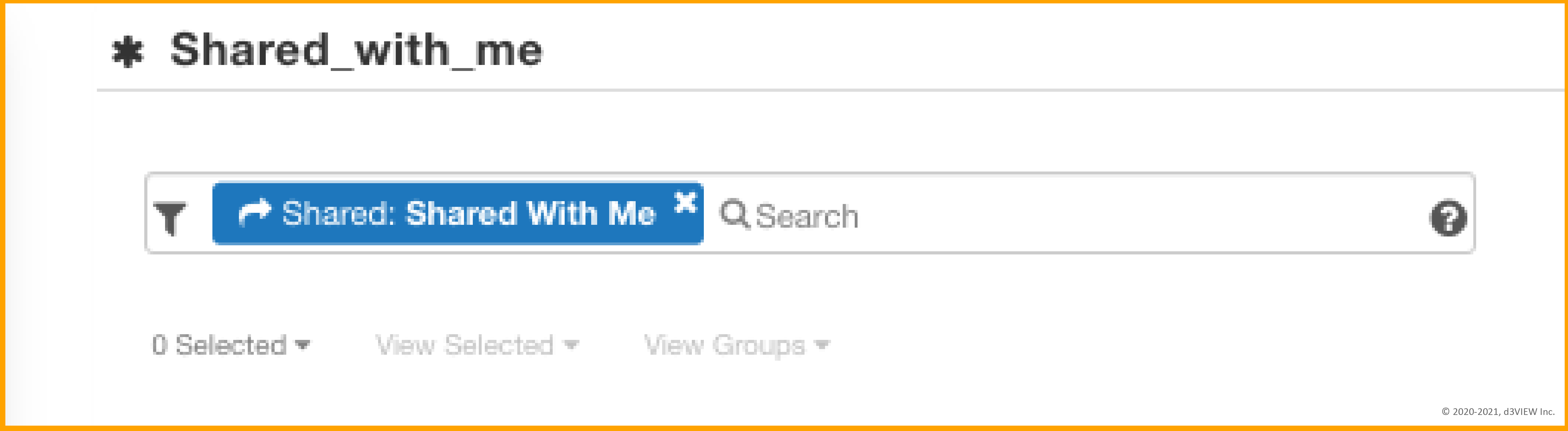
The dashboard page title reflects the filter.
Now, with your filtered dashboards, you can spend less time switching between applications the traditional way (via the application menu), and spend more time reviewing, analyzing and exploring your data.