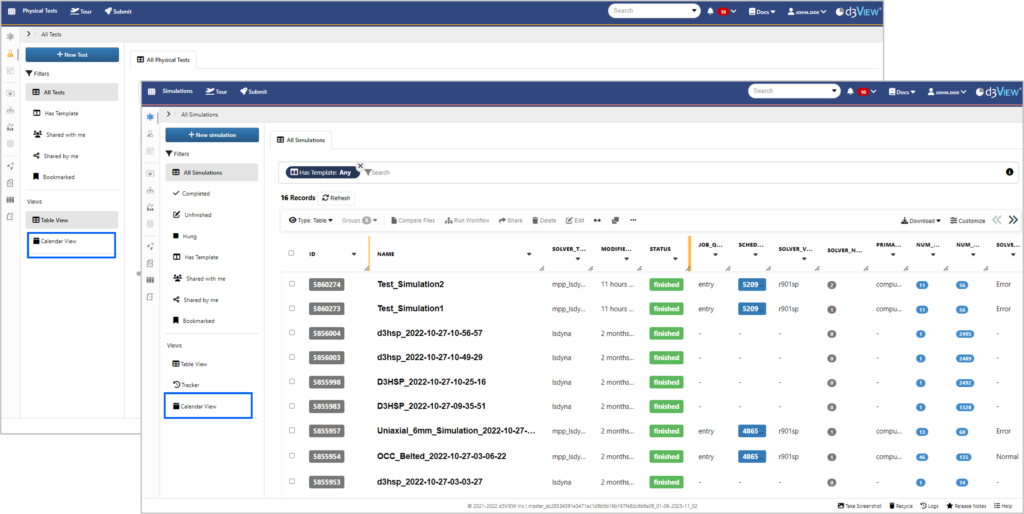
Workflows is d3VIEW’s application for streamlining complex business processes. With its capabilities, we can create and employ automated DOE studies for quicker analysis. Using the application’s new shape worker, *TEXT_PARAMETERIZE_GUI, we can set-up custom parameters for our text-based files, generate sampling points from these parameters, create simulations from the text, launch the DOE studies from the simulation, apply templates and create a report through a smooth and simple execution of workers.
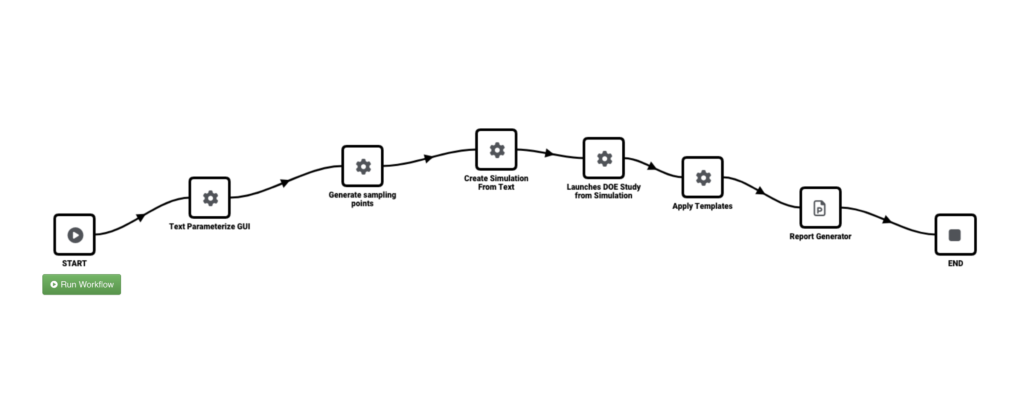
Let’s review the workers that help perform a DOE study.
*TEXT_PARAMETERIZE_GUI

Our first worker, *TEXT_PARAMETERIZE_GUI, allows us to set-up parameters in our imported text file and exports them with the updated text and anchors to use for following workers.
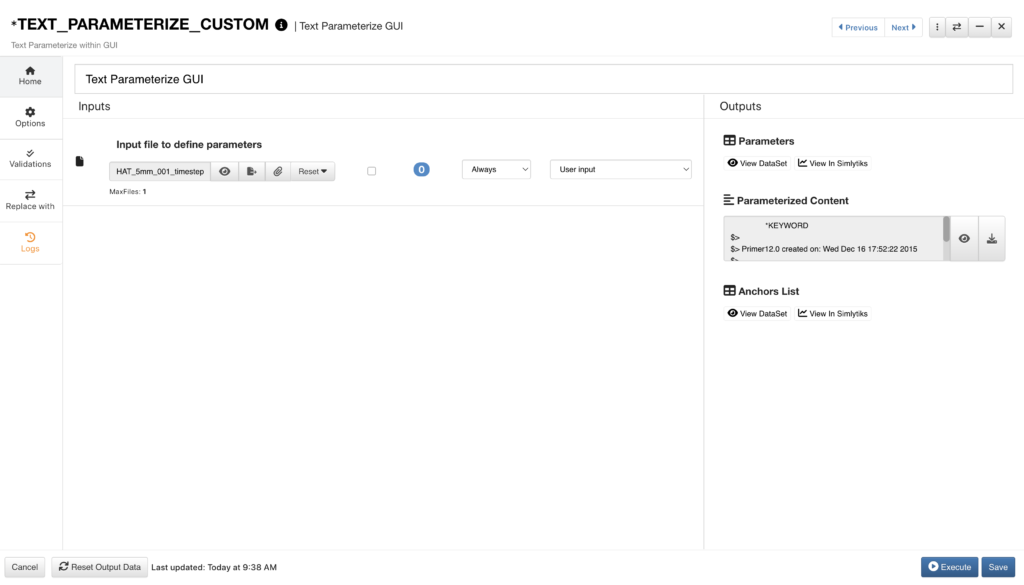
When we upload our text file, the Text Parser will automatically open for us to edit our parameters or add more parameters.
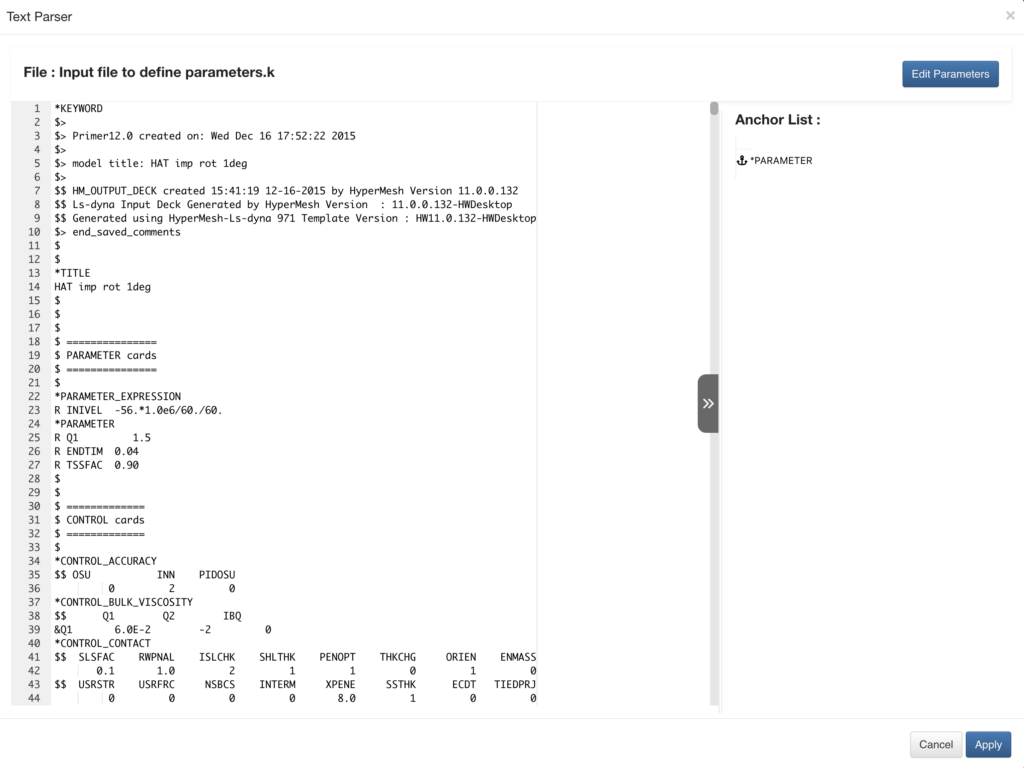
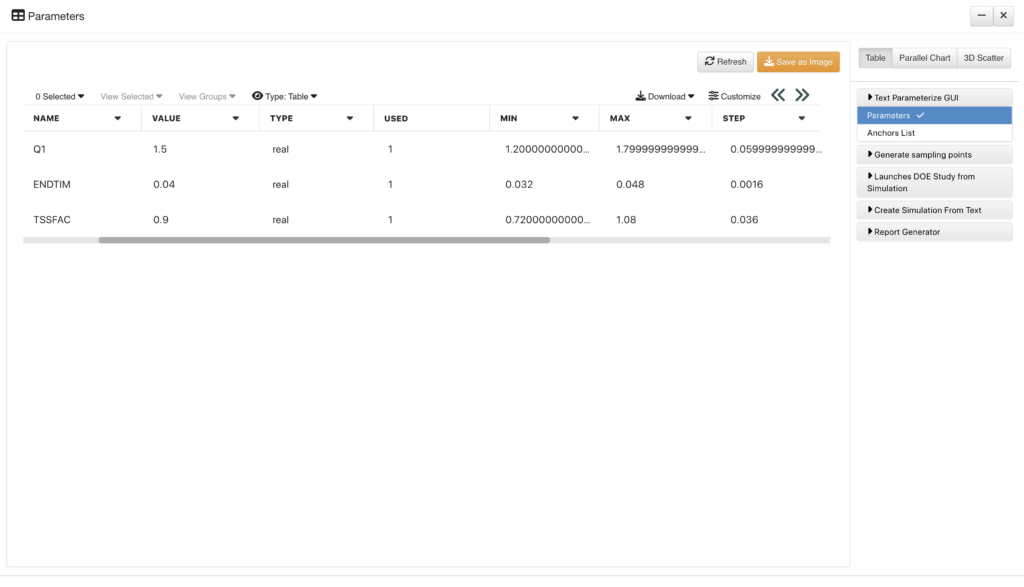
We can use the first output of this worker, the parameters, to use for creating our DOE sampling points for our study.
*DOE_SAMPLING_POINT_GENERATOR
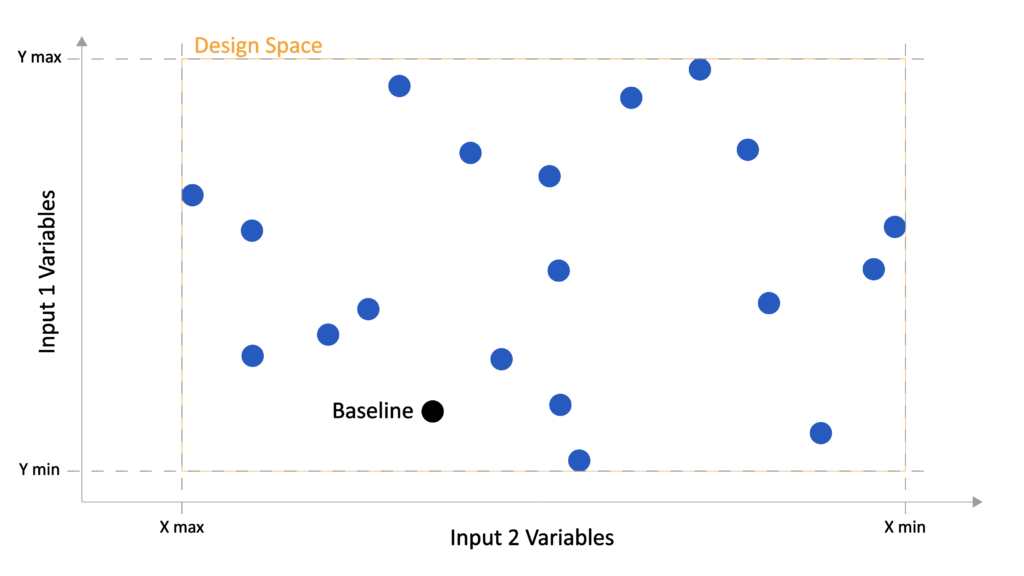
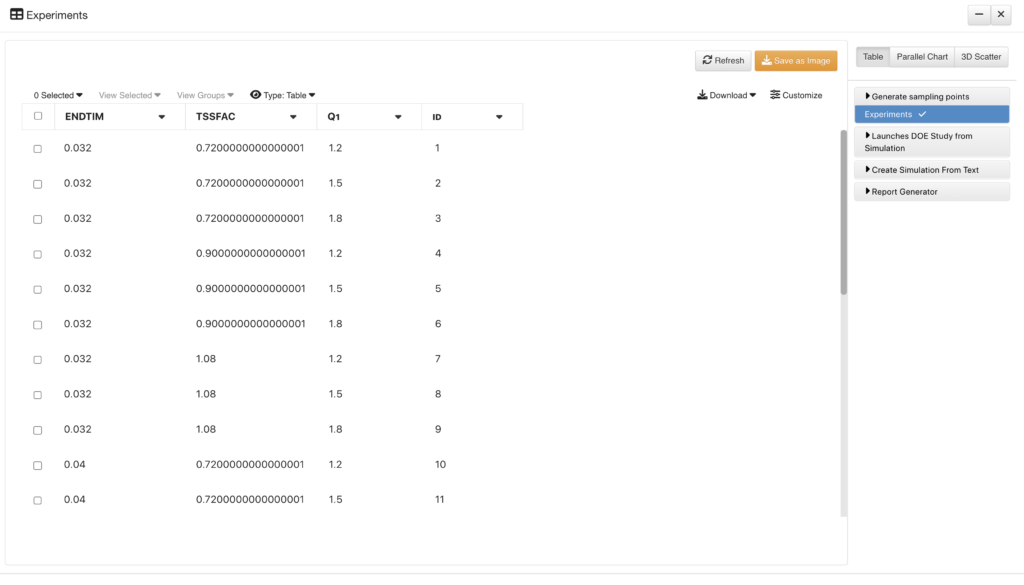
Next, we’ll use our parameters to create sampling points with the DOE_SAMPLING_POINT_GENERATOR worker. We’ll connect our parameters as our variables for this worker via the previous worker list along. This worker has three options to choose from for sampling type: D-Optimal, Latin Hypercube and Full Factorial.
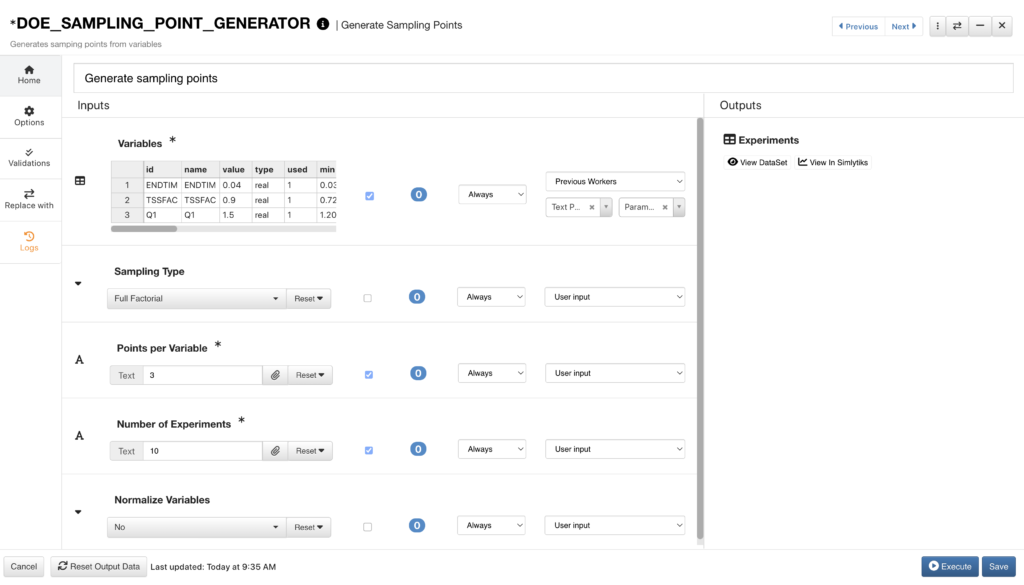
Our sampling points will be generated as a dataset we can use for our DOE studies.
*SIMULATION_CREATE_FROM_TEXT
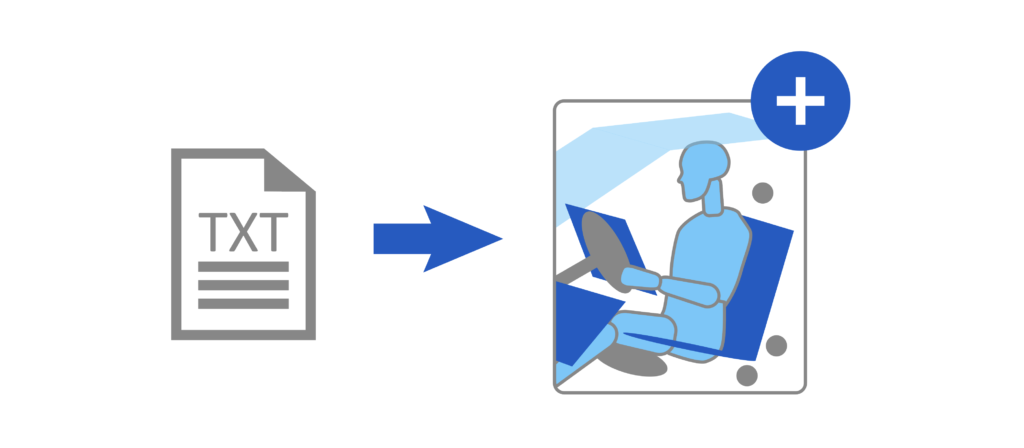
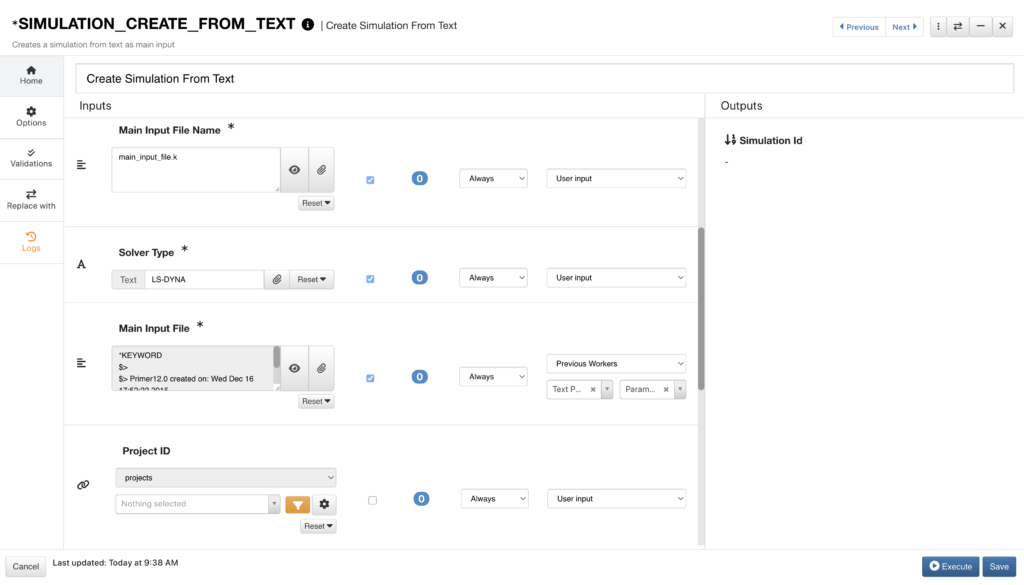
We’ll want to create a simulation from our text to base our DOE studies on. The *SIMULATION_CREATE_FROM_TEXT worker allows us to set-up our simulation parameters. We’ll pull our parameters from before into our main input file.
*DOE_STUDY_LAUNCHER_FROM_SIMULATION
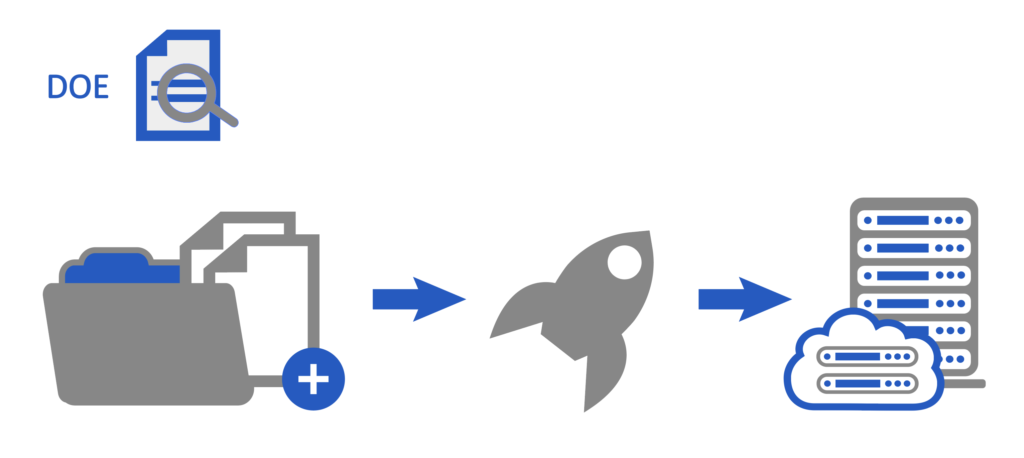
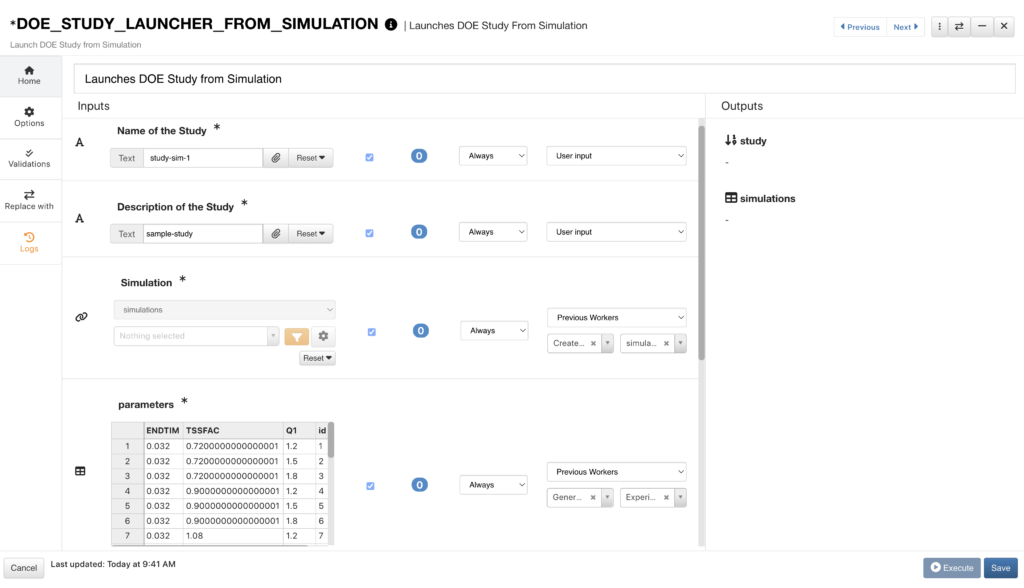
Now that we have our parameters, sampling points and simulation set up, we can launch our DOE study. We’ll set up the *DOE_STUDY_LAUNCHER_FROM_SIMULATION worker with our simulation from the previous worker and use the generated sampling points as our parameters.
*APPLY_TEMPLATES
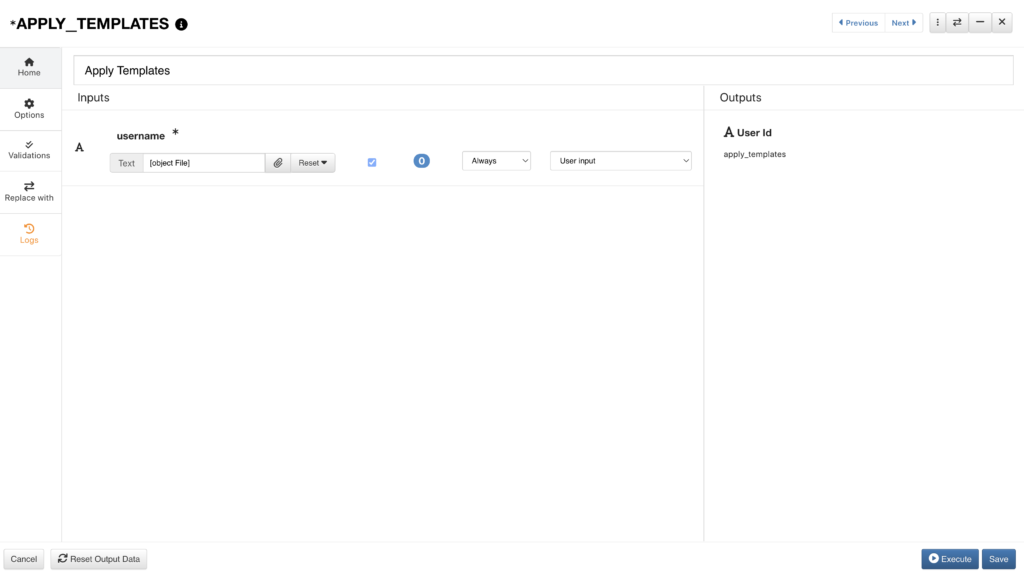
We can apply templates to our files using the *APPLY_TEMPLATES worker. A template automates data-extraction, generating responses from our study to be used in our report.
*REPORT_GENERATOR

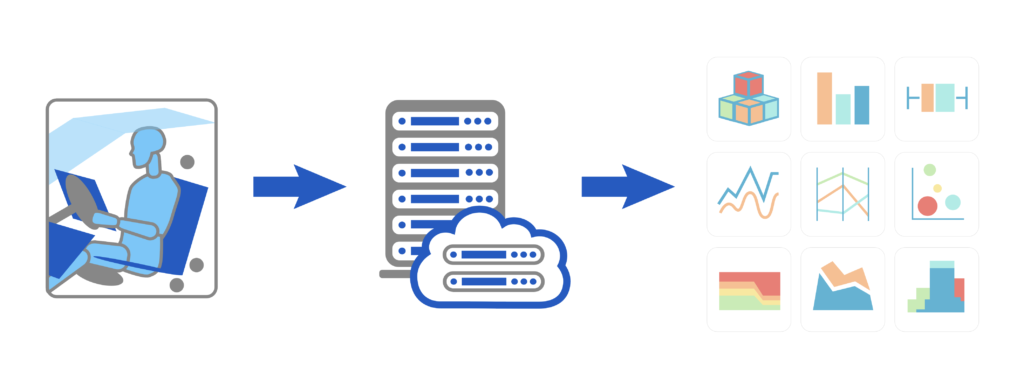
Finally, we can set up the *REPORT_GENERATOR worker to showcase our study in Simlytiks and as an exported PowerPoint.
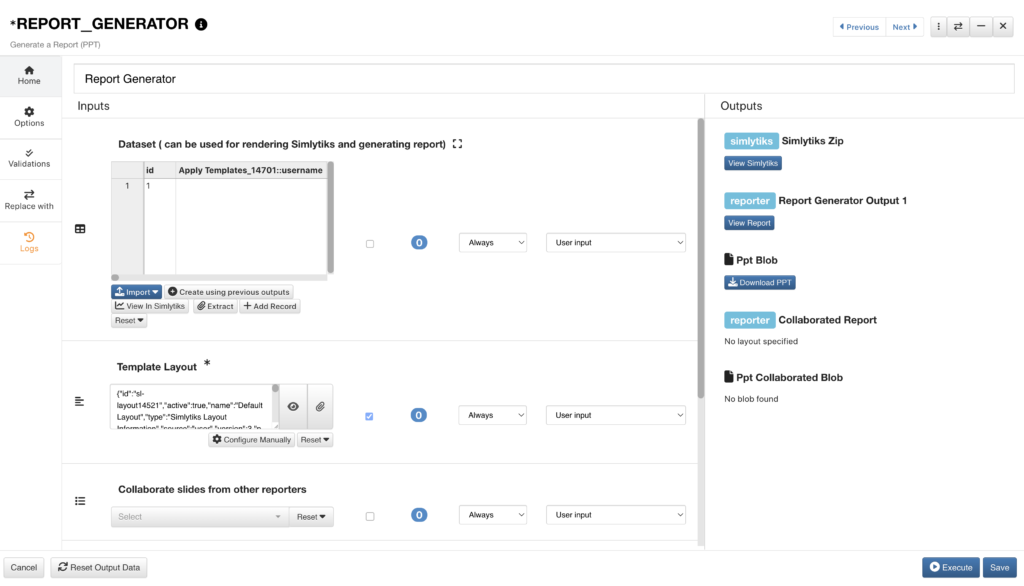
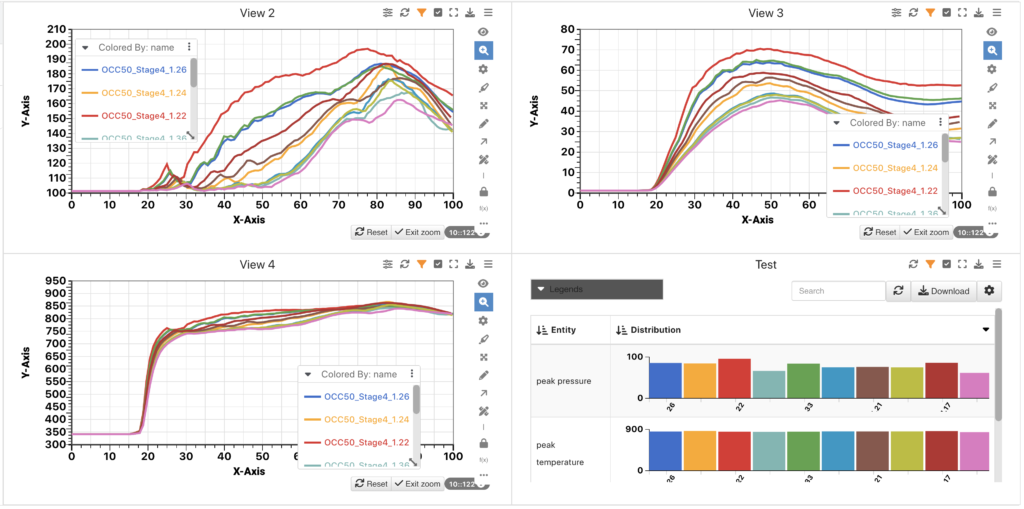
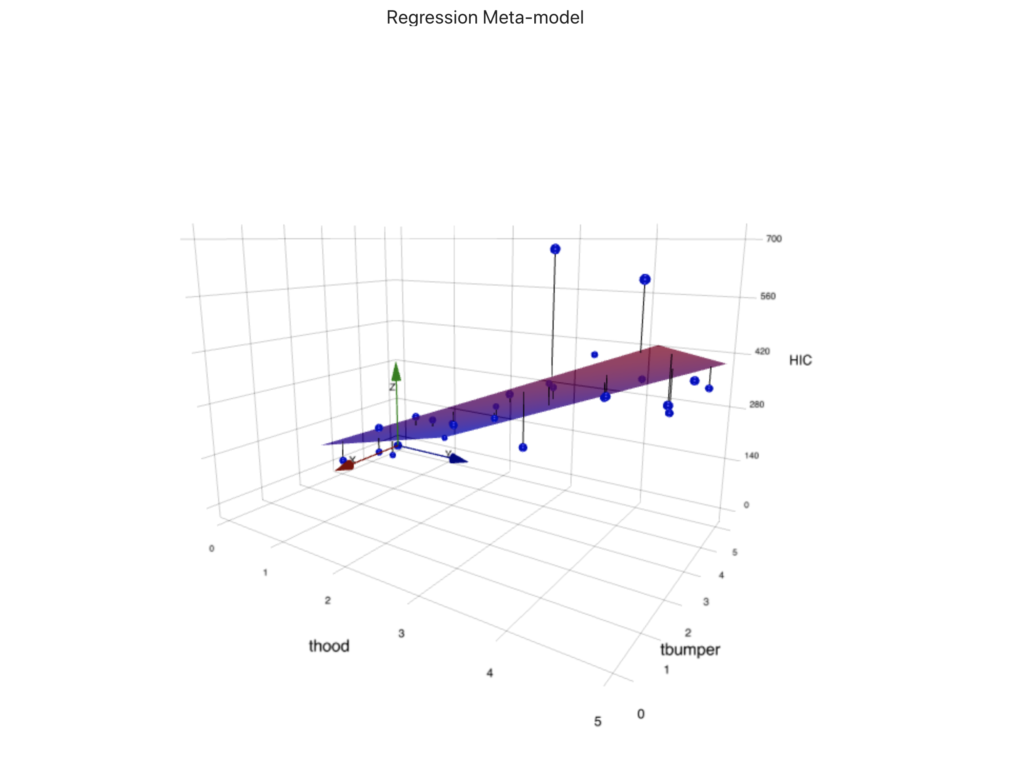
When we view the report in Simlytiks, we can study our data deeper by employing Machine Learning to make predictions on important values.
Learn more about how Workflows can help here.