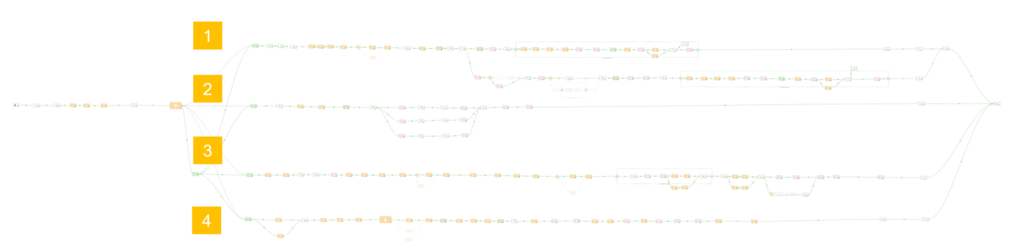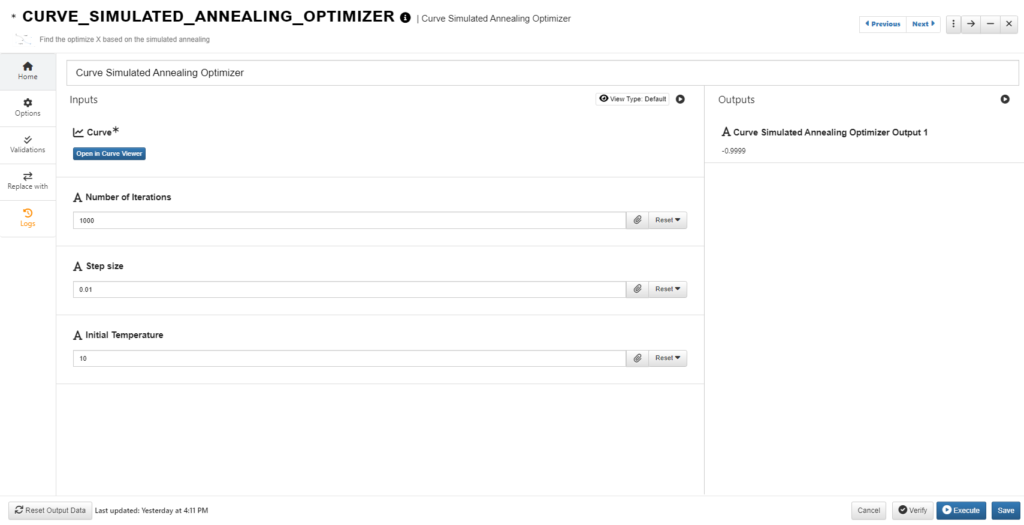
The new ‘Text Parameterize GUI’ worker helps to create machine generated designs by providing a simple to use interface to parameterize any part of a text file. Examples of such applications include single stage Design of Experiments, Sensitivity Analyses, Multi-stage Optimization and for generic machine learning problems.

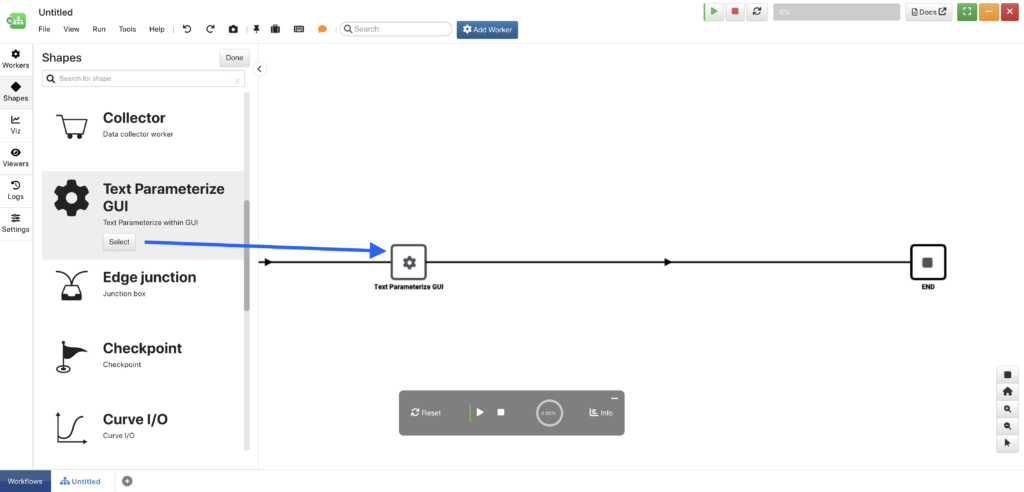
Locate the ‘Text Parameterize GUI’ worker under the Shapes menu which contains the most commonly used workers, for easy access. Generally, we’ll use this worker at the beginning of a workflow to set-up our text input file.
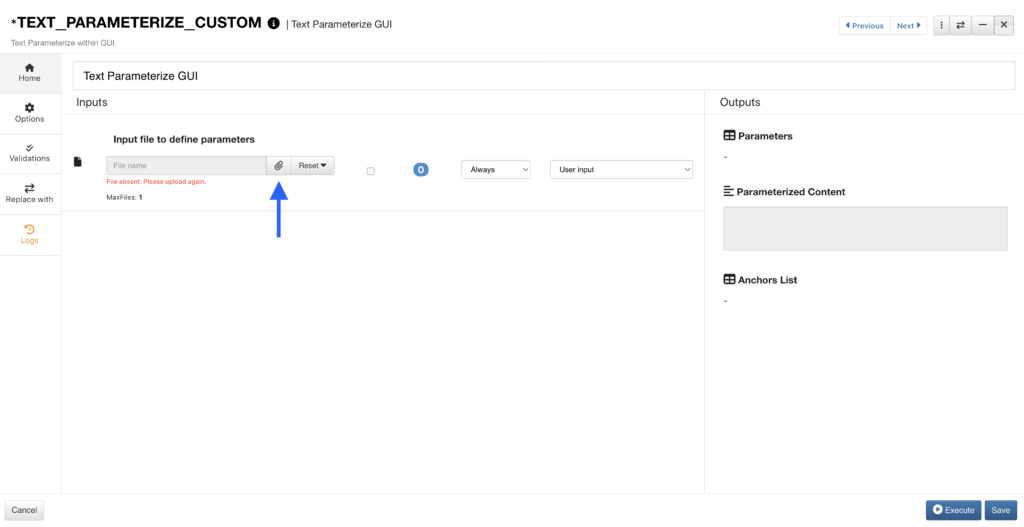
Once we’ve added the worker to our Workflow, we can start our parameterizing process. Under the worker configuration, we’ll upload our input file which will automatically open with d3VIEW’s Text Parser. Here is where we’ll start creating our parameters.
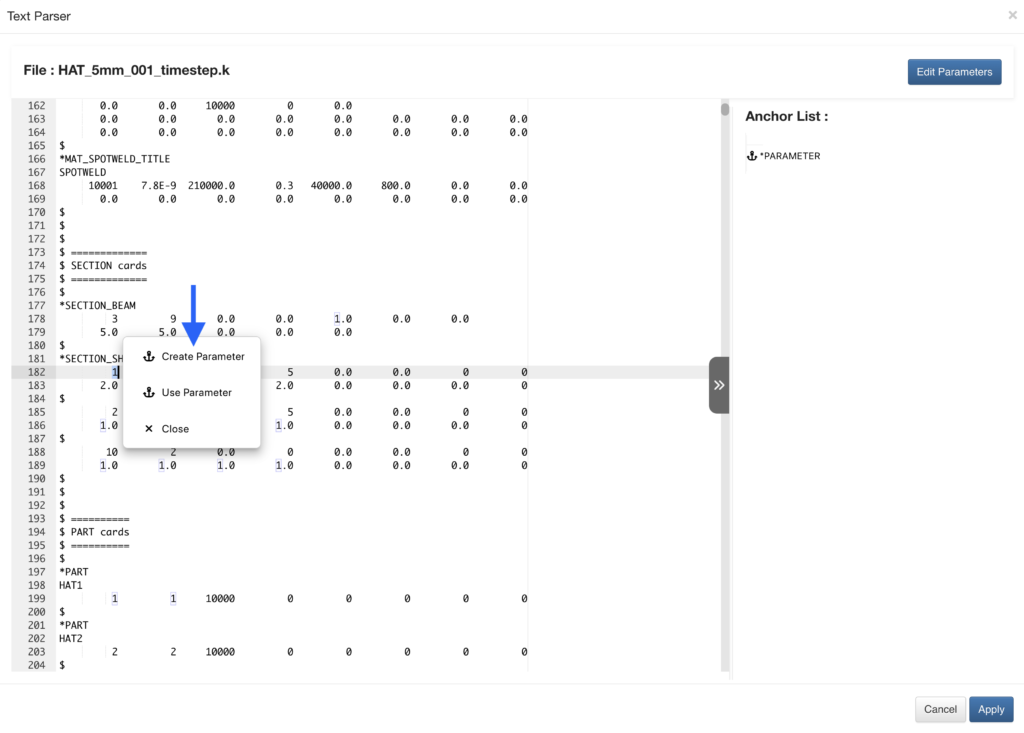
To parameterize an area, highlight it, right-click and select ‘Create Parameter’.
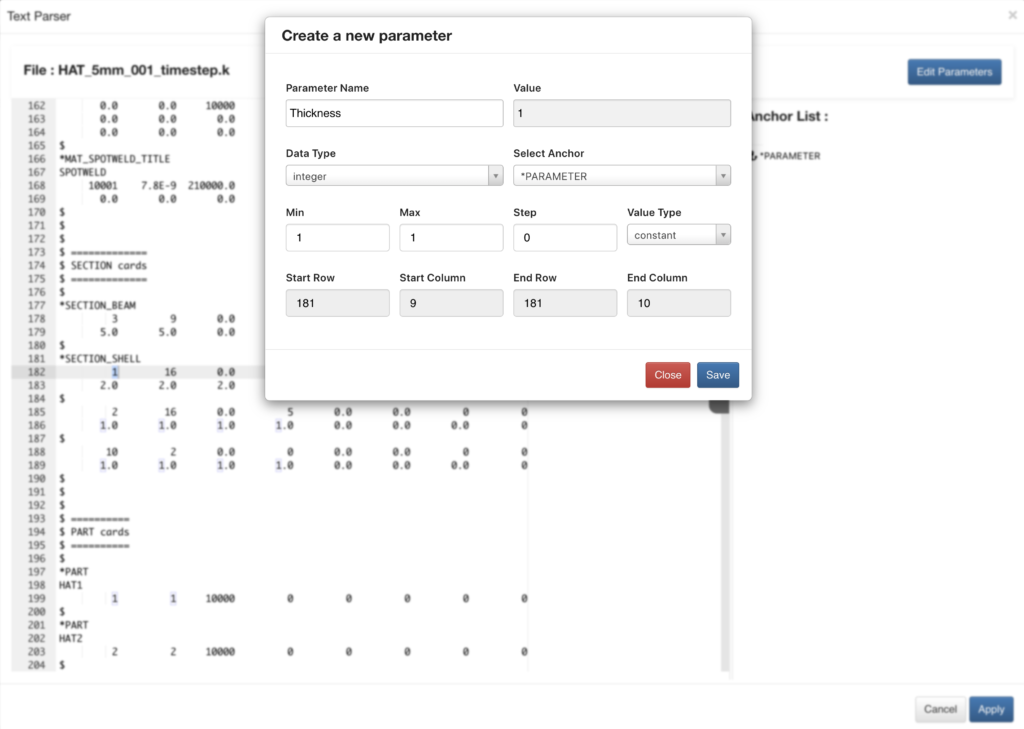
Next, we’ll provide a name for our parameter and select ‘Parameter’ as our anchor.
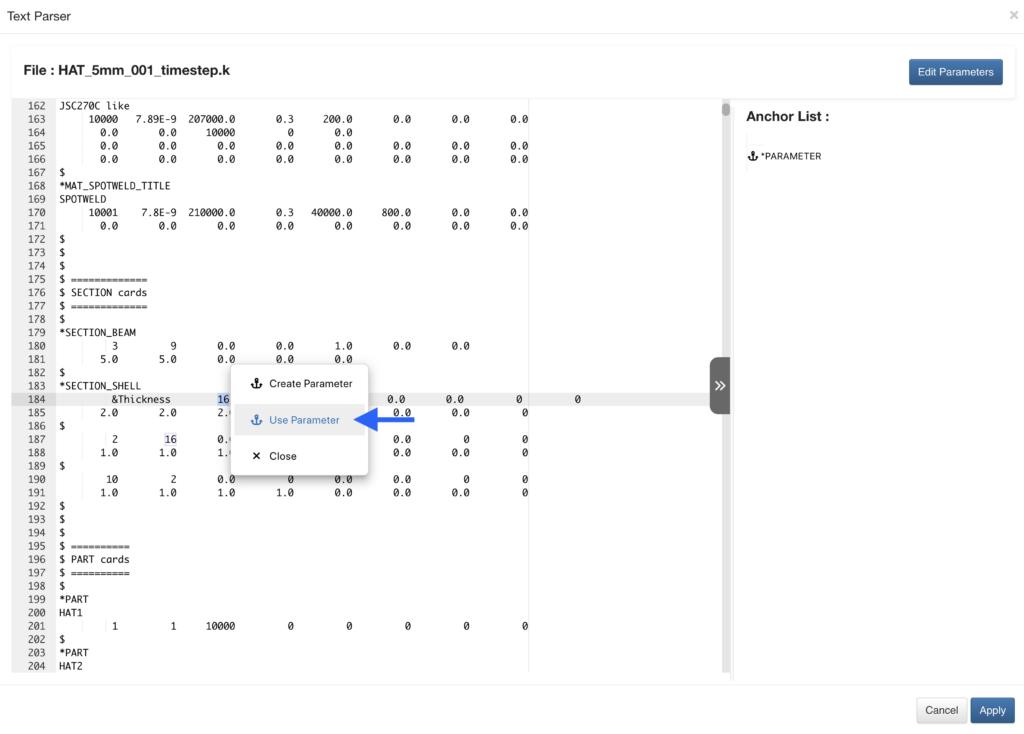
We can now highlight other areas of the text and click on ‘Use Parameter’ to apply it.
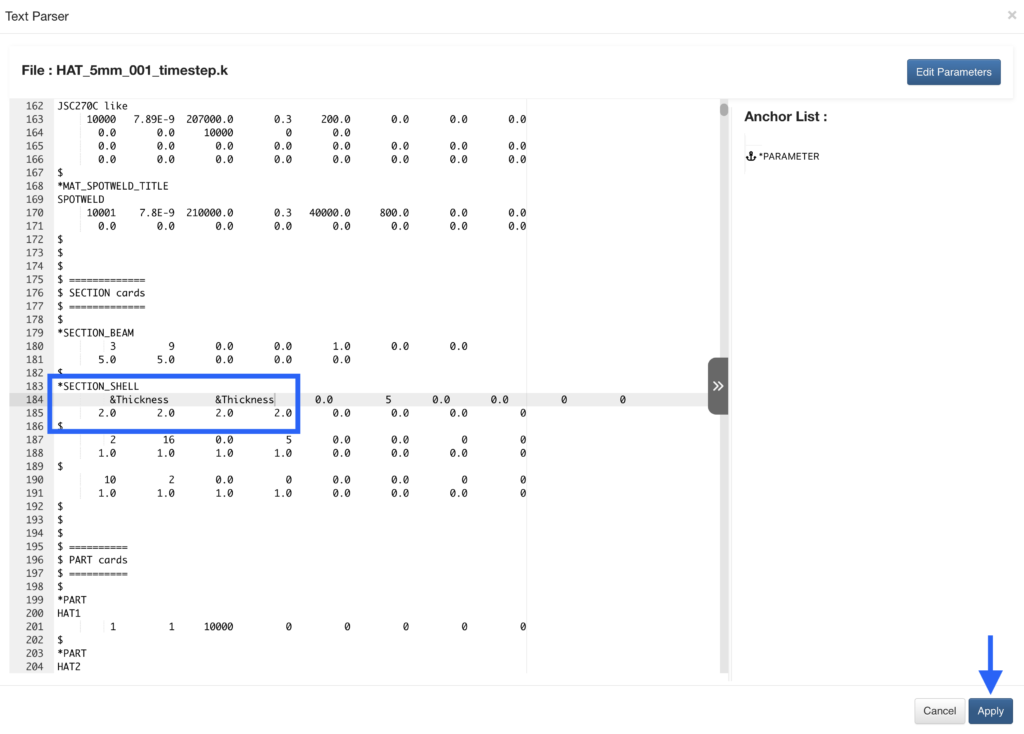
The created parameters can be used to replace specified areas of the input text file.
When we execute the worker, we’ll get our parameterized text as an output along with a table of our parameters and anchors if we need to review.
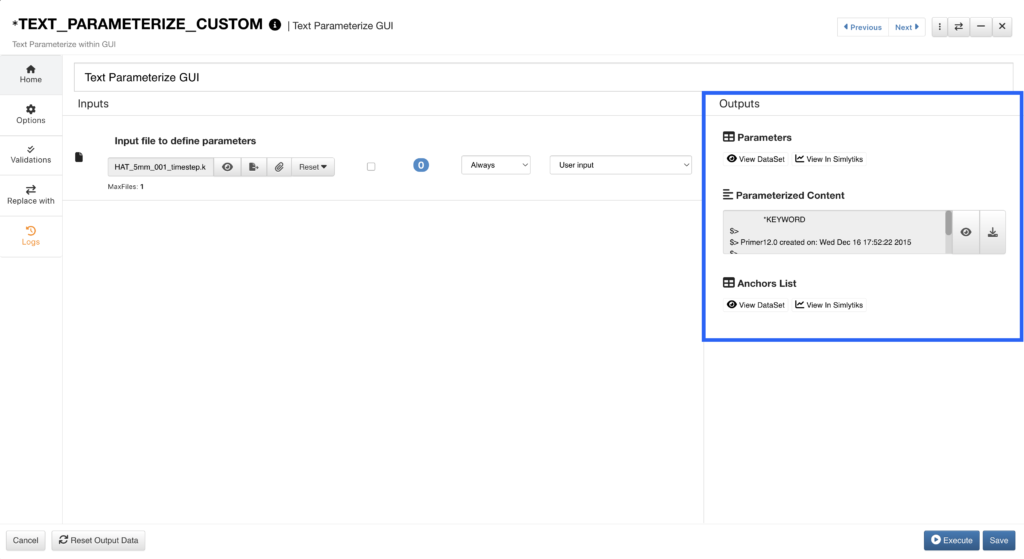
Now, we can continue with our workflow and add our parameterized text output into other worker inputs.
To learn about how ‘Text Parameterize GUI’ helps with Design-of-Experiments studies, check out this blog post.